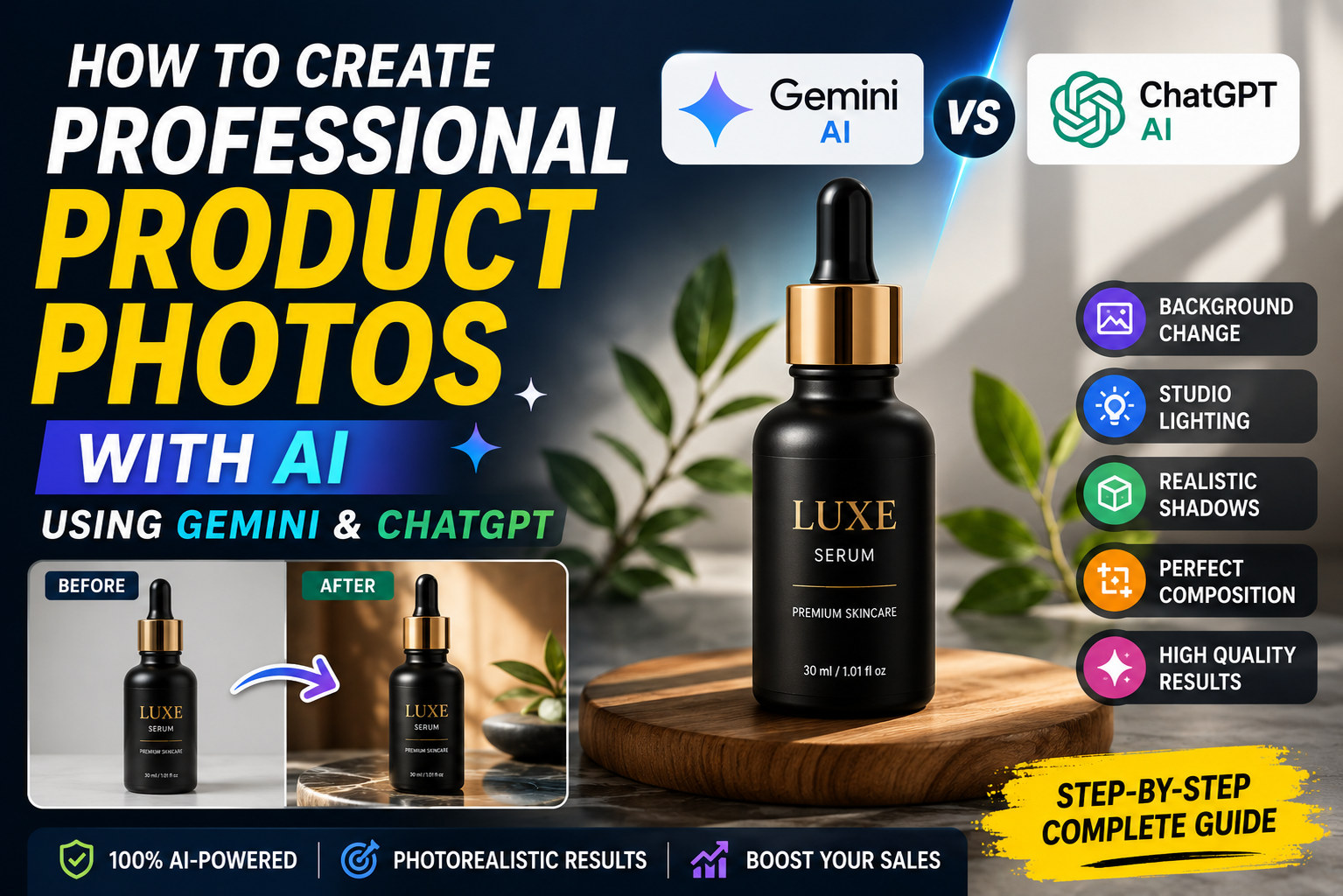
A professional product photo can make a huge difference when you are selling something online, promoting a brand on Instagram, or creating content for social media. But getting studio-quality product photography traditionally requires a camera, proper lighting, backgrounds, props and editing software.
Today, AI photo editing tools can simplify much of this process.
With Gemini and ChatGPT, you can upload an existing product photo and describe the changes you want. Gemini currently supports editing uploaded images and can also work with multiple reference images, while ChatGPT Images supports uploading an existing image and describing the edits you want to make.
The important part is learning how to write a prompt that improves the presentation without changing the actual product.
In this guide, you will learn how to create professional product photos with AI, how to write better prompts, how to replace backgrounds, how to add realistic lighting and shadows, and how to use Gemini and ChatGPT for different product photography situations.
What Is AI Product Photography?
AI product photography means using artificial intelligence to create, improve or transform product images.
Instead of manually changing every element in an editing application, you can describe the desired result using natural language.
For example, you can upload a basic product photograph and ask:
Turn this product photo into a professional studio advertisement. Keep the product shape, color, logo and packaging exactly the same. Place it on a clean premium background with soft studio lighting and realistic shadows.
The AI interprets the instructions and generates an edited version.
This can be useful for:
- E-commerce product listings
- Instagram product posts
- Facebook advertisements
- Website banners
- Online stores
- Promotional graphics
- Brand social media content
- Product launch campaigns
Why Use AI for Product Photos?
Traditional product photography can require equipment, time and editing skills.
AI can make experimentation much faster.
You can test different backgrounds, lighting styles and compositions without physically rebuilding the entire photography setup.
For example, the same product can be presented as:
- A clean white e-commerce image
- A luxury studio photograph
- A lifestyle scene
- A minimal Instagram advertisement
- A dramatic cinematic product shot
- A natural outdoor composition
The biggest advantage is flexibility.
However, AI should not be used to misrepresent a product. The product’s important characteristics, such as its color, size, shape and packaging, should remain accurate when the image is being used for commercial purposes.
How to Create Professional Product Photos With AI
Creating a professional product image is easier when you approach it in stages instead of asking the AI to completely redesign everything at once.
Step 1: Start With a Good Product Photo
Your starting image matters.
Try to use a photo where:
- The product is clearly visible
- The main details are sharp
- The product is not heavily cropped
- Important text is readable
- The original colors are reasonably accurate
- There is enough space around the product
You don’t necessarily need an expensive camera.
A clear smartphone photograph can be a good starting point for AI editing.
Pro Tip
Before uploading your image, clean the product and photograph it in reasonable lighting. AI can improve presentation, but a badly damaged or extremely blurry source image can still produce unreliable results.
Step 2: Upload the Product Image
You can use an existing image as your starting point.
Gemini allows users to upload an image and ask it to make edits. It also supports workflows involving multiple uploaded images.
ChatGPT Images similarly allows users to upload an existing image and describe the desired changes.
Once your image is uploaded, don’t immediately ask for ten different changes.
Start with the most important improvement.
For example:
Improve this product photograph while preserving the product exactly as shown. Create a clean professional studio presentation with realistic lighting and natural shadows.
After seeing the result, you can refine it.
Step 3: Tell AI What Must Stay Unchanged
This is one of the most important parts of a professional product photo AI prompt.
If you simply say:
Make this product look premium.
the AI may change parts of the product itself.
Instead, clearly identify what must remain unchanged.
Product Preservation Prompt
Use the uploaded image as the exact product reference. Preserve the product’s original shape, proportions, color, material, logo, label, packaging, buttons and important design details. Do not redesign or replace the product. Improve only the photography, environment, lighting and presentation.
This instruction is particularly useful when the product has branding or specific design details.
Step 4: Choose a Background
The background can completely change how a product photograph feels.
For an online store, a simple background is often better.
For social media, you can experiment with more creative environments.
White E-Commerce Background Prompt
Place the product on a clean pure-white studio background. Preserve the product exactly as shown. Use soft professional lighting, subtle natural contact shadow, realistic reflections and sharp product details. Create a clean commercial e-commerce photograph with balanced composition.
Luxury Background Prompt
Keep the product exactly unchanged and place it on an elegant dark luxury studio surface. Add subtle warm lighting, realistic reflections and a soft background gradient. Maintain accurate product colors and proportions. Create a premium commercial product photograph without adding unnecessary objects.
Minimal Instagram Background Prompt
Keep the uploaded product unchanged. Place it on a modern minimal background with a clean editorial aesthetic. Use soft directional lighting, realistic shadows and subtle depth of field. Keep the product as the main focus and leave enough negative space for Instagram text placement.
Step 5: Add Realistic Lighting
Lighting is one of the easiest ways to make an AI-generated product scene look more professional.
You can specify:
- Softbox lighting
- Diffused studio light
- Side lighting
- Rim lighting
- Warm ambient light
- Natural window light
- Dramatic directional light
But don’t add lighting instructions randomly.
Think about what the product would realistically look like in a studio.
Studio Lighting Prompt
Create professional studio lighting with one large soft key light from the upper left and gentle fill light from the opposite side. Maintain realistic highlights and shadows on the product. Avoid excessive glow, artificial reflections or overexposure.
This gives the AI a more specific visual direction.
Step 6: Add Realistic Shadows
One common problem with AI product images is that the object can appear to float.
A natural contact shadow helps connect the product to the surface.
Shadow Prompt
Add a subtle realistic contact shadow directly beneath the product. Match the shadow direction with the lighting. Keep the shadow soft and natural rather than dark or exaggerated.
This small instruction can make a major difference.
Step 7: Improve Composition
Professional product photography isn’t only about the product itself.
Composition matters too.
Tell the AI how you want the product positioned.
For example:
Place the product slightly to the right of the frame and leave clean negative space on the left for promotional text. Use a balanced commercial composition and keep the product as the visual focal point.
This is especially useful when creating images for advertisements.
Best AI Product Photo Prompts
Here are some ready-to-use prompts you can test in Gemini or ChatGPT.
Prompt 1: Clean E-Commerce Product Photo
Use my uploaded product photo as the exact reference. Preserve the product’s original shape, proportions, colors, logo, packaging and all important design details. Place it on a clean white studio background with soft professional lighting and a subtle natural contact shadow. Keep the product centered, sharp and realistic. Remove distracting background elements but do not modify the actual product. Create a high-quality commercial e-commerce photograph.
Prompt 2: Premium Product Advertisement
Transform the uploaded product photo into a premium commercial advertisement. Keep the actual product completely unchanged, including its shape, color, logo, label and material. Place it on an elegant studio surface with sophisticated lighting, realistic reflections and soft shadows. Use a refined background with subtle depth and keep the product as the main focus. The result should look like a professionally photographed brand campaign.
Prompt 3: Instagram Product Photo
Turn the uploaded product image into a polished Instagram product photograph. Preserve the exact product design, color, logo and proportions. Create a modern lifestyle-inspired background with soft natural lighting, realistic shadows and subtle depth of field. Use a vertical composition suitable for Instagram and leave some clean negative space around the product. Keep the result photorealistic and commercially believable.
Prompt 4: Natural Lifestyle Product Shot
Keep the uploaded product exactly unchanged. Place it naturally in a realistic lifestyle environment that suits the product category. Use believable lighting, natural shadows, realistic perspective and subtle depth of field. Make the product the main subject while keeping the environment visually appealing but not distracting. Avoid changing the product’s design, branding or color.
Prompt 5: Product Launch Banner
Create a professional product launch image using the uploaded product as the exact reference. Preserve all product details and branding. Place it in a clean premium environment with dramatic but realistic studio lighting. Position the product slightly to one side and leave sufficient negative space for a headline and promotional text. Use a polished commercial advertising composition and realistic shadows.
Gemini Prompt for Product Photography
Gemini’s current image tools support editing uploaded images, local edits and multiple-image workflows, depending on the model and account availability. Google’s documentation also recommends describing the desired visual style and giving detailed information about the subject and setting.
A useful Gemini prompt can look like this:
Edit my uploaded product photo into a professional commercial product photograph. Preserve the exact product identity, shape, proportions, color, logo, label and packaging. Do not redesign the product. Replace the existing background with a clean premium studio environment. Add soft directional lighting, realistic reflections and a subtle contact shadow. Keep the product sharp and accurately represented. Use a balanced composition with enough negative space for advertising text.
ChatGPT Prompt for Product Photography
ChatGPT Images supports editing an uploaded image by describing the changes you want. It also provides an editor that can be used to select an area and then describe the edit. OpenAI notes that selections are not always perfectly precise, so checking the entire image after an edit is important.
Try this prompt:
Edit this product photo professionally while keeping the actual product unchanged. Preserve its original shape, proportions, colors, logo, packaging and fine details. Replace only the background with a clean premium studio setting. Improve lighting, add realistic soft shadows and make the composition suitable for an online advertisement. Do not invent or remove product features.
Gemini vs ChatGPT for Product Photography
Both tools can be useful, but your choice may depend on the type of workflow you prefer.
Gemini can be useful for:
- Multiple image references
- Creative product concepts
- Background transformations
- Character and image consistency workflows
- Detailed visual instructions
- Quick experimentation
Google currently lists character consistency, local edits and multiple-image workflows among the capabilities of its current image generation model.
ChatGPT can be useful for:
- Conversational editing
- Step-by-step refinement
- Specific image changes
- Selected-area editing
- Aspect-ratio changes
- Iterative prompt development
ChatGPT’s current image editor supports selecting part of an image, describing the change, undoing or redoing selections, and changing the aspect ratio.
Instead of assuming one tool will always produce a better result, test the same product and prompt in both when the project is important.
How to Make AI Product Photos Look More Realistic
AI-generated product photos can sometimes look too perfect.
A realistic commercial image usually needs believable imperfections.
Use instructions such as:
- Natural reflections
- Physically believable shadows
- Realistic material texture
- Accurate perspective
- Natural lighting
- Correct proportions
- Subtle depth of field
- Realistic surface contact
Better Prompt
Make the scene photorealistic and commercially believable. Preserve accurate product proportions and material texture. Use physically consistent lighting, realistic reflections and natural contact shadows. Avoid excessive sharpening, artificial glow, plastic-looking surfaces and unrealistic highlights.
This is much more useful than simply writing “make it ultra realistic.”
Common AI Product Photography Mistakes
1. Letting AI Redesign the Product
If the product has a logo, packaging or recognizable design, always tell the AI to preserve it.
2. Using Too Many Instructions at Once
If you ask for a new background, new packaging, different colors, different materials, new lighting and multiple props in one prompt, the AI may produce an inconsistent result.
Make the changes in stages.
3. Forgetting Product Accuracy
A beautiful image isn’t useful if it shows a product that doesn’t actually exist.
For commercial use, verify the final image against the original product.
4. Making the Background Too Distracting
The product should remain the visual focus.
A complicated background can reduce the clarity of an advertisement.
5. Overusing Effects
Excessive glow, reflections, blur and dramatic lighting can make a product image look artificial.
Professional photography usually benefits from controlled effects rather than maximum effects.
How to Create Different Versions From One Product Photo
One original product image can become several marketing assets.
For example:
Version 1 — Website
Clean white background with soft shadows.
Version 2 — Instagram
Modern lifestyle background with vertical composition.
Version 3 — Advertisement
Premium studio scene with negative space for text.
Version 4 — Product Launch
Dramatic lighting with a clean promotional composition.
Version 5 — Seasonal Campaign
A realistic environment related to the campaign while keeping the product unchanged.
This workflow can save time because you don’t have to photograph the product from scratch for every marketing concept.
A Simple AI Product Photography Workflow
If you’re a beginner, follow this process:
Step 1
Take a clear photograph of your product.
Step 2
Upload it to Gemini or ChatGPT.
Step 3
Ask the AI to preserve the product exactly.
Step 4
Change the background.
Step 5
Improve the lighting.
Step 6
Add realistic shadows.
Step 7
Adjust the composition.
Step 8
Check the product against the original photograph.
Step 9
Create additional versions for different platforms.
Step 10
Choose the version that best represents the real product.
This approach is more reliable than asking the AI to completely reinvent the photograph in a single step.
Final Thoughts
Learning how to create professional product photos with AI doesn’t require you to become an expert photographer overnight.
The most important skill is learning how to communicate the desired result clearly.
Start with a good product photograph, protect the important product details, then change the environment, lighting and composition step by step.
Gemini and ChatGPT both provide useful image-editing workflows, but the final quality depends on the source image, prompt, requested transformation and the specific result you get. Gemini supports uploaded-image editing and multiple-image workflows, while ChatGPT supports uploaded-image editing and selected-area adjustments.
Most importantly, don’t judge an AI product photo only by how attractive it looks. If the image is being used commercially, accuracy matters just as much as appearance.
A professional AI product photo should make the real product look better—not make it look like a different product.
Frequently Asked Questions
Can I create professional product photos with Gemini?
Yes. Gemini’s current image tools can edit uploaded images and create new images from reference images.
Can ChatGPT edit product photos?
Yes. ChatGPT Images allows users to upload an existing image and describe the changes they want.
What should I include in an AI product photography prompt?
Mention the product, what must remain unchanged, background, lighting, shadows, composition, camera style and realism requirements.
How do I stop AI from changing my product?
Clearly instruct the AI to preserve the product’s shape, proportions, color, logo, packaging, material and other important design details.
Can AI remove a product photo background?
Yes. Background replacement is a common type of AI image-editing task. You can explicitly describe the background you want while instructing the AI to keep the product unchanged.
Should I use Gemini or ChatGPT for product photos?
Both are worth trying. Gemini and ChatGPT offer different image-editing workflows, so the better choice depends on the specific product and the result you want.
Are AI-generated product photos safe for online stores?
They can be useful, but always compare the final image with the actual product. Avoid using AI to create misleading representations of important product characteristics.
What makes a product photo look professional?
Good composition, accurate product details, controlled lighting, realistic shadows, clean backgrounds and appropriate visual hierarchy are more important than simply adding dramatic AI effects.