A good photograph is not always about having a perfect camera, expensive equipment, or a complicated editing setup. Sometimes the photograph is already sharp and well-lit, but the composition feels wrong. The subject may be too close to the edge, there may be too much empty space, or the image may not fit properly into the format required for Instagram, a profile picture, a website, or another platform.
This is where AI can be useful.
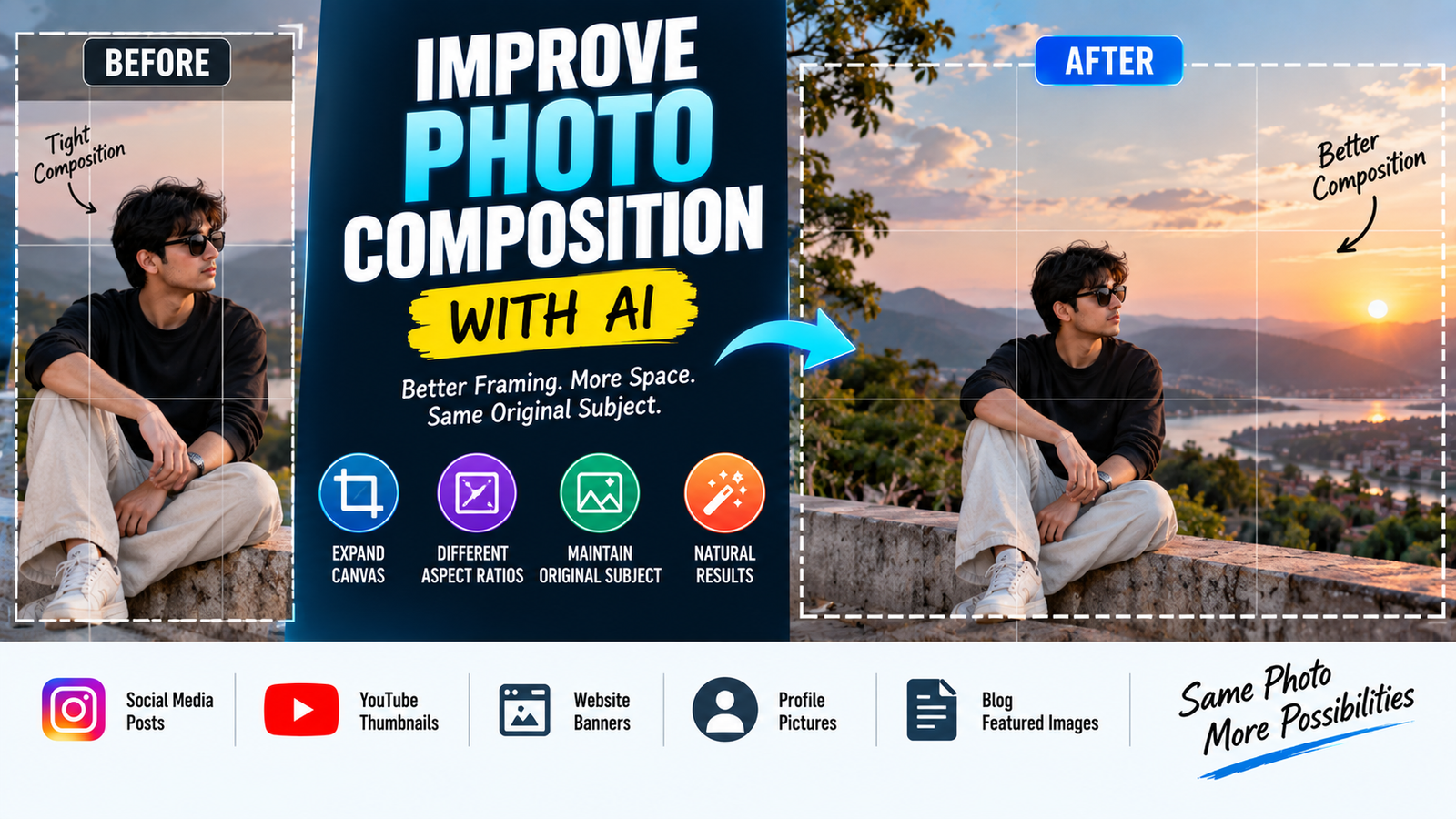
Instead of completely recreating the photograph, AI can help adjust the framing, extend the canvas, reposition visual space, or prepare an image for a different aspect ratio.
The difficult part is doing this without changing the original subject.
An AI editor may enlarge a person’s face, alter clothing, invent parts of the background, or change important objects while trying to improve the composition. A successful workflow therefore needs to separate composition changes from subject changes.
This guide explains how to use AI for better photo composition, when to expand an image instead of cropping it, how to prepare photographs for different platforms, and how to avoid the common mistakes that make an edited image look artificial.
What Is Photo Composition?
Photo composition is the way visual elements are arranged inside an image.
It includes things such as:
- Subject placement
- Empty space
- Image balance
- Camera framing
- Visual direction
- Background area
- Foreground and background relationship
- Aspect ratio
- Cropping
Composition influences where the viewer looks first and how the photograph feels.
A technically sharp photograph can still have weak composition.
For example, imagine taking a portrait where the person’s head is extremely close to the top edge. The photograph may be perfectly focused, but the framing can feel uncomfortable.
Instead of changing the person’s appearance, the problem can sometimes be solved by creating additional space above the subject.
That is a composition correction, not a subject transformation.
Why AI Can Be Useful for Composition
Traditional cropping removes pixels.
AI image expansion can sometimes create additional visual information outside the original frame.
For example, a portrait may originally look like this:
Original frame:
Person + very little space above the head.
After expansion:
Extended frame:
Person + naturally reconstructed background + additional space above.
This can be useful when you need to change the image format without cutting off important parts of the subject.
However, the newly generated area is an AI reconstruction. It should therefore be inspected rather than automatically assumed to be accurate.
Cropping and AI Expansion Are Not the Same
Before editing a photograph, decide whether you actually need AI.
There are two basic approaches.
Traditional Cropping
Cropping removes part of the original image.
This works well when:
- The subject has enough surrounding space
- No important details are near the edges
- You simply need a different composition
- The required aspect ratio can be achieved without losing important content
Cropping is often the simplest solution.
AI Expansion
AI expansion creates additional space outside the original photograph.
This is useful when:
- The subject is already close to an edge
- Cropping would remove important details
- You need a wider composition
- You need additional space for text
- You want to convert a vertical image into a wider format
The important distinction is:
Cropping removes information. AI expansion attempts to create additional information.
First Decide Where the Empty Space Should Be
Don’t ask AI to simply “make the image wider.”
Think about the composition you actually need.
Suppose a person is looking toward the right side of the photograph.
Adding more space on the right can make the composition feel more natural because the subject has visual space in the direction they are looking.
This is sometimes called look room or lead room.
If the subject is looking toward the left, the opposite may be more appropriate.
AI can help create this additional space, but you should decide where that space belongs before editing.
Use the Direction of the Subject
The subject’s orientation can help determine how an image should be expanded.
Subject facing right
Additional space on the right may work well.
Subject facing left
Additional space on the left may be more appropriate.
Subject facing the camera
Balanced space on both sides may work better.
Subject walking
Leave enough space in the direction of movement.
Vehicle moving through a scene
Additional space in front of the vehicle can make the photograph feel less cramped.
Composition should support the subject’s visual direction rather than simply filling empty pixels.
Don’t Move the Subject Just to Fill Space
One of the biggest mistakes with AI composition editing is asking the model to reposition the person.
For example:
Move the person to the left and make the image cinematic.
This can encourage the AI to regenerate the person.
Instead, if the subject is already correct, preserve the subject and change the surrounding canvas.
A better instruction is:
Expand the canvas on the right side while keeping the existing subject in the same position, scale, pose and appearance. Reconstruct only the additional background area and maintain the original perspective and lighting.
This keeps the composition problem separate from the subject.
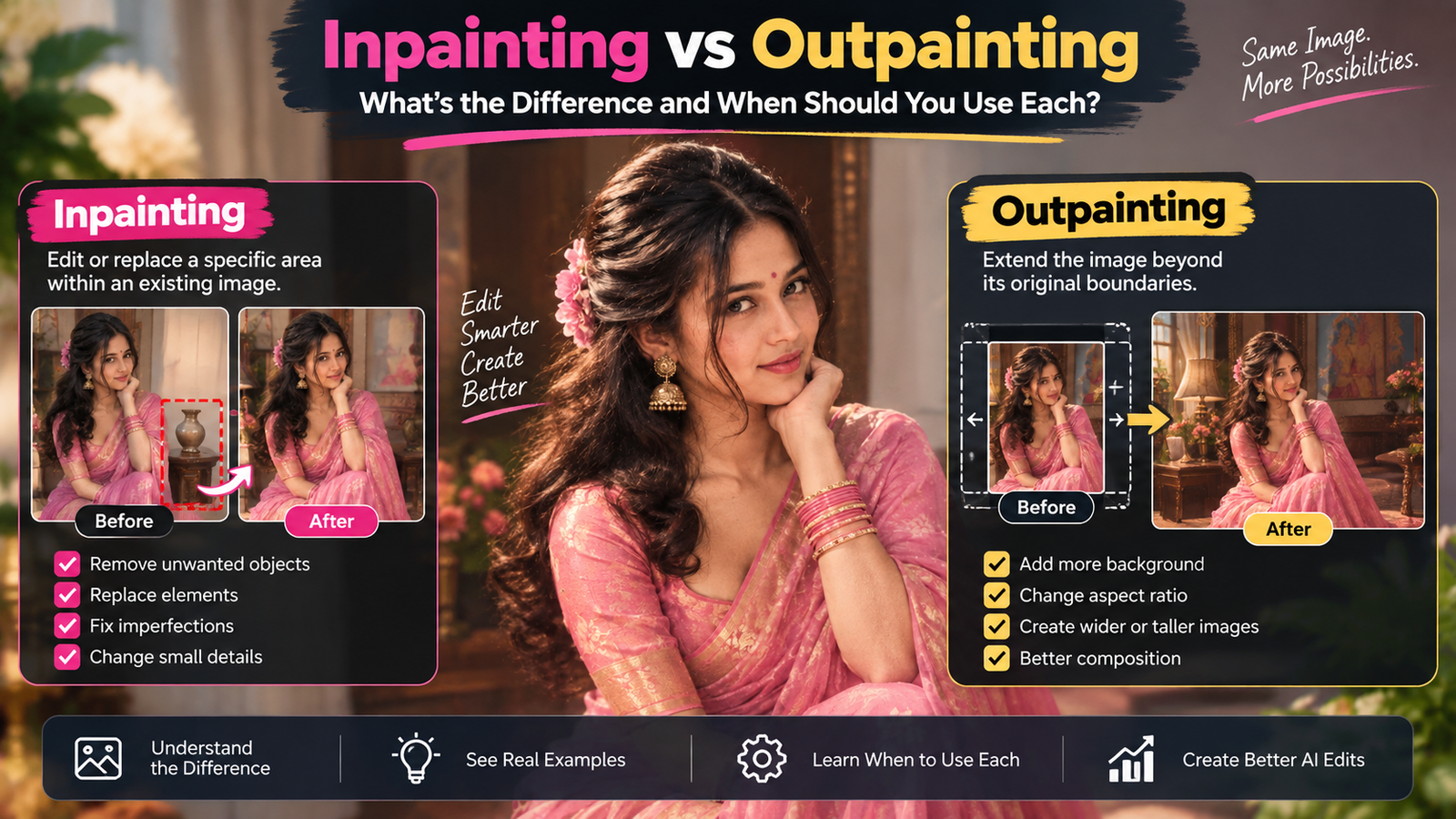
AI Outpainting: Extending Beyond the Original Frame
The process of generating new visual content beyond an existing image is often referred to as outpainting or image expansion.
It can be useful when an image needs more room around the subject.
For example, you may have a vertical portrait but need a horizontal banner.
Instead of stretching the original photograph, you can extend the environment around the person.
The AI might reconstruct:
- Wall
- Sky
- Trees
- Floor
- Architecture
- Road
- Furniture
- Landscape
The quality of the result depends heavily on how predictable the surrounding environment is.
A simple wall is generally easier to extend than a crowded street containing many unique objects.
When AI Expansion Works Best
AI expansion tends to be easier when the area outside the original frame contains predictable visual information.
Examples include:
Sky
A photograph with a large area of sky can often be expanded naturally if the colors and clouds are consistent.
Plain walls
Simple architectural surfaces provide repeating patterns.
Floors
Tiles, wood or concrete can sometimes be extended when perspective is clear.
Natural landscapes
Trees, grass and distant scenery may provide enough surrounding information for plausible expansion.
But there are situations where AI expansion becomes much more difficult.
Difficult Areas for AI Expansion
Be careful when expanding around:
- Faces
- Hands
- Text
- Logos
- Detailed architecture
- Crowded streets
- Complex patterns
- Mirrors
- Glass
- Important objects
- Historical details
AI can create something visually convincing without reproducing the exact original reality.
For example, if the edge of a building is cut off, the AI may invent architectural details that look reasonable but weren’t actually there.
That’s acceptable for a creative image in some situations, but not for every type of photograph.
Preserve the Original Subject
When composition is the only problem, the original subject should generally be treated as fixed.
A useful editing instruction can specify:
Preserve the existing subject exactly as shown in the original photograph. Do not alter the face, hairstyle, clothing, body proportions, pose, skin texture, accessories or position. Expand only the surrounding canvas and reconstruct the missing background naturally.
This approach is particularly useful for portraits.
It tells the AI that the person isn’t the part that needs improvement.
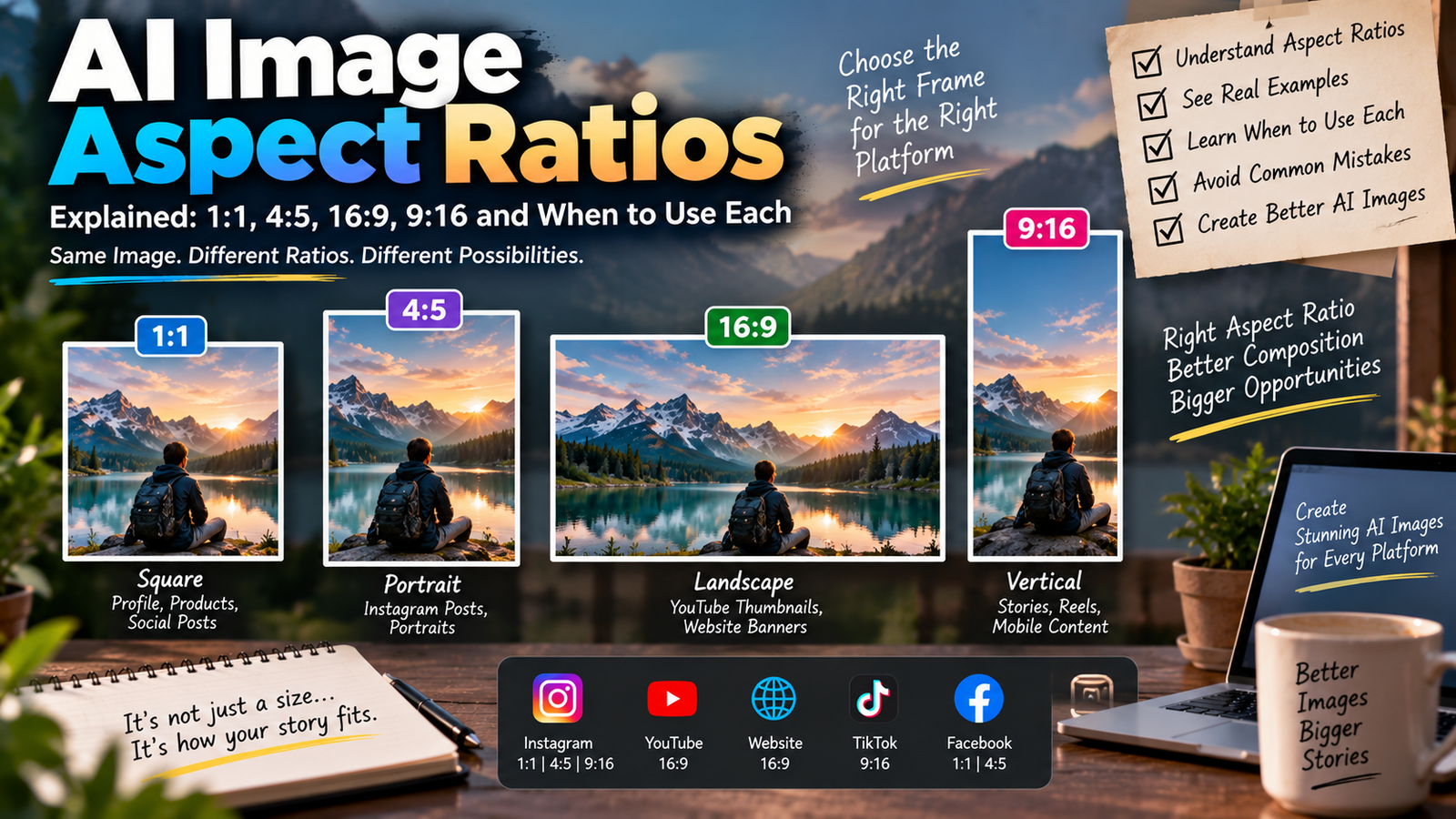
Why Aspect Ratio Matters
Different platforms use different image proportions.
A photograph that looks good in one format may become awkward in another.
For example, you may have:
- A vertical portrait
- A square profile image
- A horizontal website banner
- A wide thumbnail
- A story-style image
If you simply crop the same photograph into every format, important content may disappear.
AI expansion can sometimes provide another option: instead of removing parts of the photograph, create additional space around them.
However, the required aspect ratio should be decided before editing.
Don’t Stretch the Original Photograph
One of the worst ways to make a photograph wider is simply stretching it.
Stretching can make:
- Faces look wider
- Buildings look distorted
- Products change shape
- People appear unnaturally tall
- Circles become ovals
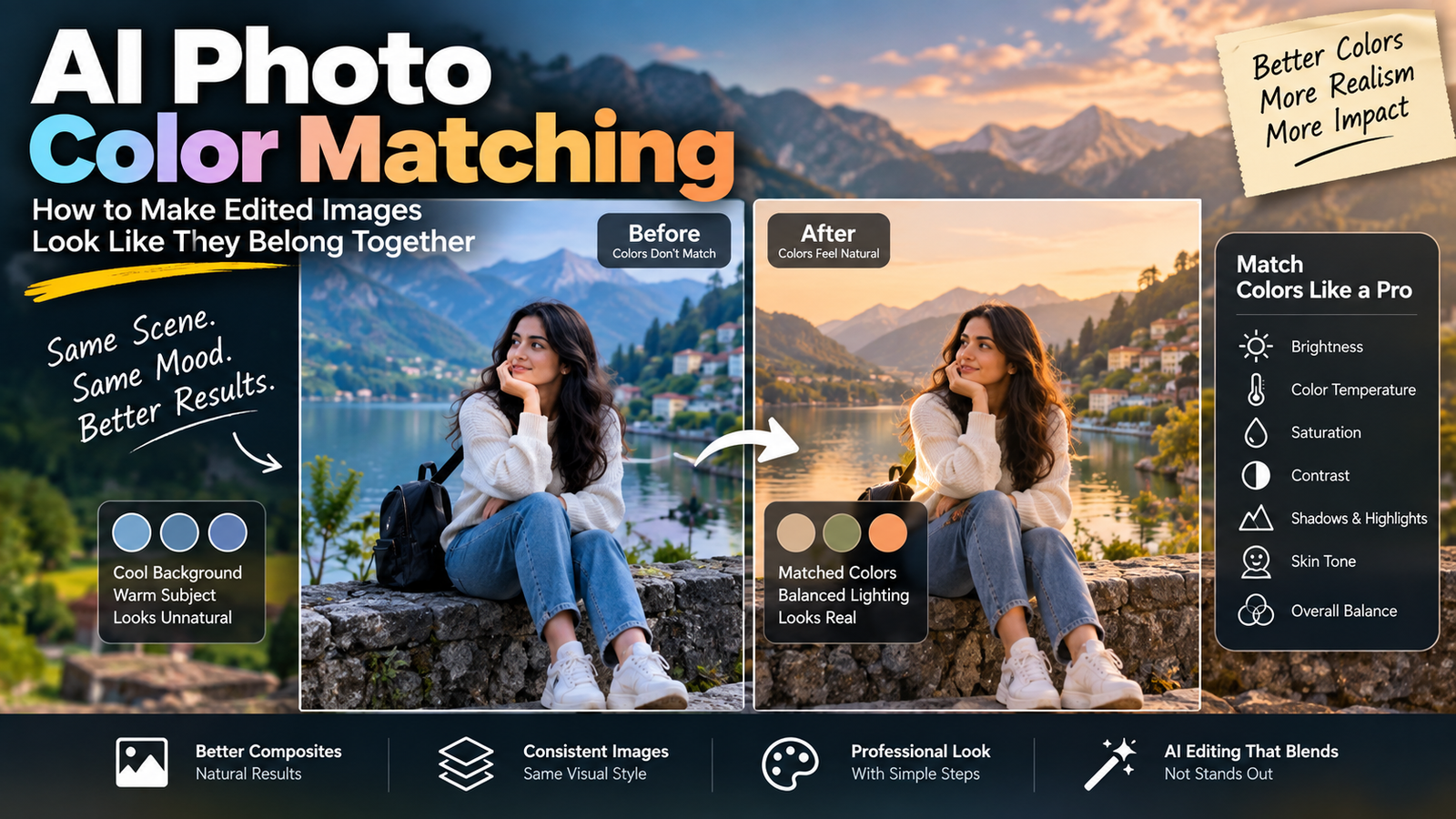
AI expansion is fundamentally different because it attempts to generate additional content rather than deforming existing pixels.
If the original photograph already has the correct proportions, protect those pixels and expand the canvas around them.
Creating Space for Text
AI composition editing can also be useful when preparing images for social-media graphics or blog thumbnails.
Suppose the subject occupies most of the frame, leaving nowhere to place a title.
Instead of covering the person’s face with text, you can create additional negative space.
For example:
Extend the background on the left side while preserving the existing subject exactly. Create clean, natural negative space suitable for placing text. Match the original lighting, perspective, color and background texture.
The goal isn’t to generate a new design.
It is to create enough visual breathing room for the existing design.
Negative Space Is a Design Tool
Empty space isn’t necessarily wasted space.
In photography and graphic design, negative space can help:
- Separate the subject from the background
- Direct attention
- Make text easier to read
- Create a cleaner composition
- Give the image a more professional appearance
If an image feels crowded, adding controlled negative space can sometimes improve it more than adding effects.
This is especially useful for:
- Blog featured images
- Social-media graphics
- Website banners
- Advertisements
- Profile banners
Don’t Add Random Details to Fill Empty Space
A common AI mistake is filling every newly created area with objects.
Suppose you ask for additional space beside a person.
The AI might add:
- Trees
- Cars
- Buildings
- People
- Decorative objects
The result may become busier instead of cleaner.
If your objective is negative space, say so.
For example:
Extend the existing background naturally while keeping the new area visually simple and uncluttered. Do not introduce new prominent objects or people.
The empty area should serve the composition.
It doesn’t need to become another scene.
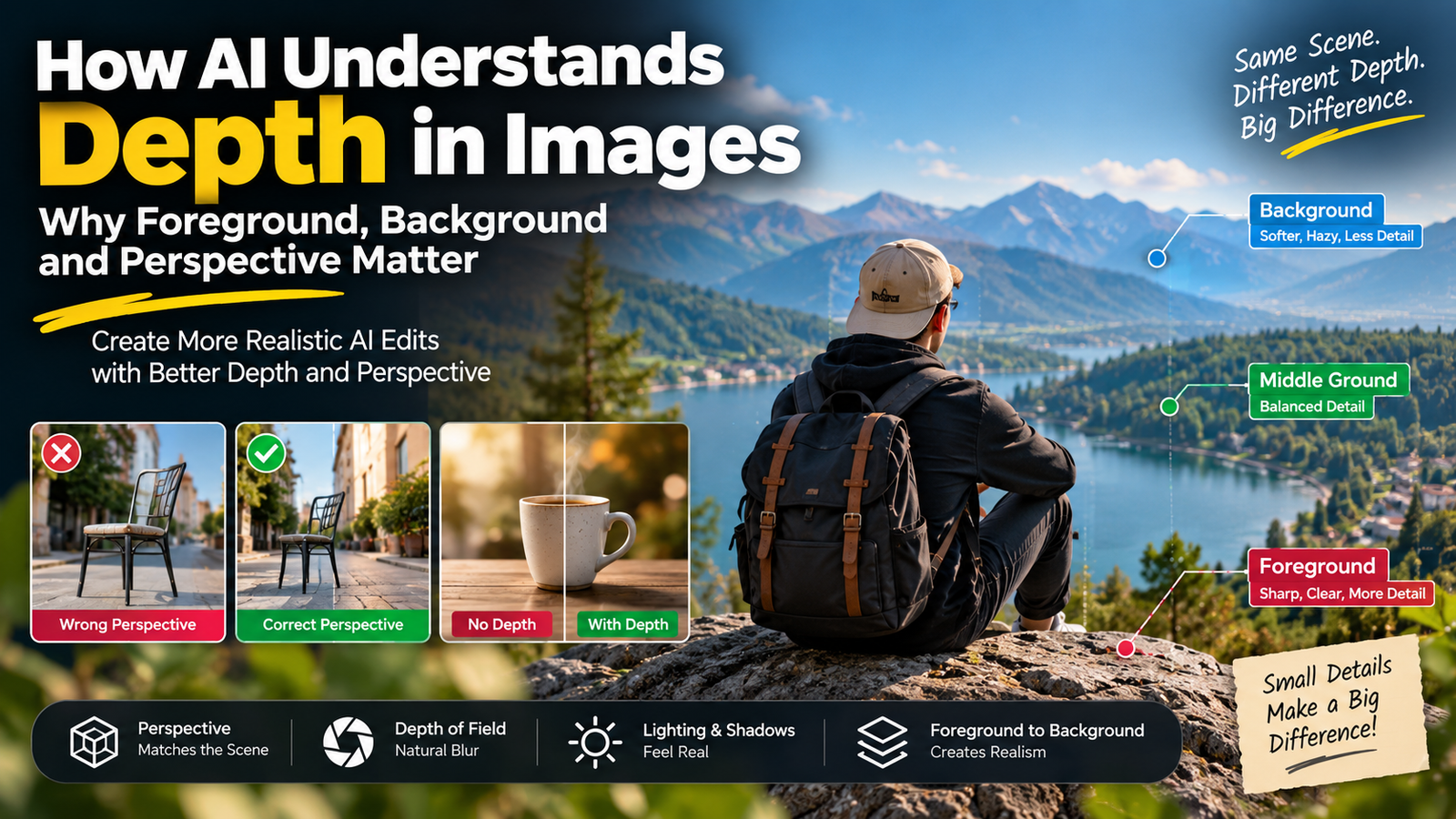
Maintaining Perspective During Expansion
Perspective becomes especially important when extending floors, streets, rooms or architecture.
Imagine a photograph of a person standing on a tiled floor.
If the image is expanded downward, the new tiles should follow the direction of the original floor lines.
If they suddenly become larger or smaller, the result will look artificial.
The same principle applies to:
- Roads
- Buildings
- Hallways
- Tables
- Walls
- Fences
- Windows
A useful instruction is:
Continue the existing perspective and geometry naturally into the newly generated area.
Lighting Must Continue Beyond the Frame
The AI-generated area should match the original photograph’s lighting.
If the original image contains warm sunset light, the expanded region shouldn’t suddenly become cool daylight.
Pay attention to:
- Brightness
- Color temperature
- Shadow direction
- Contrast
- Highlights
- Ambient light
The new area should feel as though it was captured by the same camera at the same moment.
Texture Continuity Makes Expansion Believable
A newly generated area can look fake when its texture doesn’t match the original.
For example:
Original: Fine-grained concrete wall.
Expansion: Smooth artificial-looking wall.
The difference can reveal the edit.
The same issue can occur with:
- Grass
- Sand
- Brick
- Wood
- Fabric
- Stone
- Clouds
When expanding an image, ask the AI to continue the existing texture and visual characteristics, rather than introducing an entirely new surface.
Don’t Over-Specify the New Background
There is a temptation to describe every detail of the expanded area.
But if the goal is simply to continue an existing environment, too many creative instructions can make the result less consistent.
If the photograph already contains a city street, you usually don’t need to redesign the entire street.
Tell the AI to continue what is already there.
For example:
Continue the existing city street naturally beyond the original frame, maintaining the same architecture, perspective, lighting and depth.
This gives the model context without unnecessarily changing the photograph.
Composition Correction for Portraits
Portraits are particularly sensitive because the subject’s face and body proportions are important.
Suppose the original portrait has very little space above the person’s head.
Instead of changing the portrait itself, expand the upper background.
The instruction can be:
Extend the background above the subject while keeping the person’s face, hair, body, clothing, proportions and position completely unchanged. Continue the existing background naturally with matching lighting, depth and texture.
After editing, compare the head and shoulders with the original.
The person should remain the same size and position.
Composition Correction for Full-Body Photos
Full-body photographs have another challenge: feet.
When expanding downward, AI may accidentally modify:
- Shoes
- Legs
- Ground contact
- Shadows
If the feet are already visible and correct, protect them.
A useful instruction is:
Extend the ground area below the subject without altering the person’s legs, feet or shoes. Continue the existing surface and perspective naturally and maintain realistic contact shadows.
This helps separate the subject from the new background.
What If AI Changes the Face?
If the composition edit changes the face, don’t continue expanding the same result repeatedly.
Return to the original image if possible.
Then perform a more conservative expansion.
If your editor supports masking, protect the subject and allow the AI to work only outside the original image area.
The principle is simple:
Don’t regenerate what you already have.
If the original face is good, preserve it.
What If AI Adds People?
Crowded environments can cause unexpected people to appear in the expanded region.
This isn’t always a problem.
For example, a busy city street may naturally contain pedestrians.
But if you’re creating a clean commercial image, additional people can become distracting.
You can specify:
Keep the expanded background natural and uncluttered. Do not introduce prominent new people or objects.
Afterward, inspect the new area for unexpected subjects.
How to Choose Between Cropping and Expansion
Use cropping when:
- Important content won’t be removed
- The image already has enough surrounding space
- You need a simple aspect-ratio change
Use AI expansion when:
- Cropping would remove the subject
- You need more room around the subject
- Text needs additional space
- The subject is close to an edge
- You need a wider or taller composition
Use traditional editing when:
- Exact geometric accuracy is required
- The image contains critical technical information
- Generated content cannot be accepted
- A precise commercial composite is necessary
Choosing the simplest suitable method usually produces the most reliable result.
A Practical Composition Workflow
Instead of immediately generating an expanded image, follow a simple process.
Step 1: Identify the Composition Problem
Decide whether the issue is:
- Too little headroom
- Too little side space
- Crowded framing
- Wrong aspect ratio
- Lack of text space
- Subject too close to an edge
Step 2: Decide the New Canvas
Determine whether you need the image to become:
- Wider
- Taller
- Square
- Vertical
- Horizontal
Step 3: Decide Where to Add Space
Use the subject’s direction, pose and visual balance.
Step 4: Protect the Existing Image
Tell the AI not to alter the original subject.
Step 5: Expand Conservatively
Don’t create dramatically more space than necessary.
Step 6: Inspect the New Area
Check perspective, texture, lighting and unexpected objects.
Step 7: Compare With the Original
Make sure the original subject hasn’t changed.
Step 8: Export the Correct Version
Keep the original file and save the composition-adjusted version separately.
Before and After: What Should Actually Improve?
A successful composition edit should have a specific improvement.
For example:
Before:
The subject’s head is almost touching the top edge.
After:
There is comfortable space above the head.
Or:
Before:
The subject is looking toward the right edge with almost no space.
After:
Additional space appears in the direction of the subject’s gaze.
Or:
Before:
A portrait is too narrow for the intended design.
After:
The canvas is wider without stretching or changing the person.
The improvement should be measurable visually.
How to Review an AI-Expanded Photograph
Don’t only look at the full image.
Inspect three areas separately.
Original Area
Has anything inside the original photograph changed?
Boundary
Does the transition between the original and generated area look natural?
New Area
Does the expanded content match the scene?
Look for:
- Repeated patterns
- Strange objects
- Broken architecture
- Unnatural shadows
- Incorrect perspective
- Different lighting
- Artificial textures
- Unexpected people
The boundary deserves particular attention because that is where generated content meets real photographic information.
Why the Boundary Is So Important
Imagine extending a brick wall.
If the original wall has bricks of a certain size and the generated section suddenly contains much larger bricks, the transition can become visible.
The same thing happens with:
- Floor tiles
- Windows
- Clouds
- Wood grain
- Fences
- Road markings
A good expansion should feel continuous rather than divided into “real” and “generated” sections.
Don’t Use AI Expansion to Recover Unknown Information
AI expansion can create plausible content outside a photograph.
It cannot reliably tell you what was actually outside the original camera frame.
This distinction is important.
If you’re creating a creative image, plausible reconstruction may be perfectly acceptable.
But if you’re trying to document an actual event, location or historical scene, generated content should not automatically be treated as factual evidence.
The AI is filling missing visual information.
It isn’t revealing a hidden photograph.
A Reusable AI Composition Instruction
For general image expansion, you can use this framework:
Extend the existing photograph into the requested direction while preserving the original image, subject, proportions and composition. Continue the surrounding environment naturally using the existing perspective, lighting, colors, depth and textures. Do not alter the original subject, face, clothing, important objects or photographic details. Keep the new area visually consistent and avoid introducing unnecessary people or prominent objects.
The specific direction can be added depending on the photograph.
For example:
Extend the image to the right…
or:
Add natural background space above the subject…
This is more useful than collecting dozens of unrelated composition prompts.
Composition Is More Than Making an Image Bigger
Adding pixels doesn’t automatically improve a photograph.
Good composition requires a reason for the additional space.
The extra area should help the image communicate something.
It might:
- Give a person room to look
- Make a product feel less cramped
- Improve balance
- Create space for a headline
- Fit a required aspect ratio
- Improve visual hierarchy
If the additional space doesn’t serve any purpose, the edit may not actually improve the photograph.
Use AI to Support the Photograph, Not Replace It
This is the central idea behind reliable AI composition editing.
Your original photograph already contains valuable information:
- The actual subject
- Real lighting
- Real textures
- Authentic expressions
- Original details
- Natural imperfections
If those elements are already good, don’t regenerate them unnecessarily.
Use AI where it provides genuine value—such as extending the canvas or reconstructing a limited area around the existing photograph.
The less you ask the model to reinterpret, the easier it is to maintain the original character of the image.
Final Quality Checklist
Before publishing an AI-expanded photograph, ask:
- Is the original subject unchanged?
- Is the face still identical?
- Are body proportions preserved?
- Did the clothing remain unchanged?
- Is the new background consistent?
- Does the perspective continue naturally?
- Does the lighting match?
- Are shadows believable?
- Are textures continuous?
- Did AI add unexpected people?
- Did it introduce random objects?
- Are architectural lines correct?
- Does the image have the intended aspect ratio?
- Is the additional space actually useful?
- Does the final photograph still feel like one continuous image?
If the answer is yes, the composition adjustment is likely doing its job.
Conclusion
AI photo composition is most useful when it solves a specific framing problem without unnecessarily changing the original photograph.
Before editing, decide what is wrong with the composition and where additional space would improve it. Use cropping when cropping is enough, and use AI expansion when removing part of the original image would damage the composition.
When expanding a photograph, preserve the existing subject and pay close attention to perspective, lighting, texture, shadows and the transition between the original and generated areas.
Most importantly, don’t confuse AI-generated expansion with information that was actually captured by the camera. The AI is creating a plausible continuation of the scene.
Used carefully, AI can give an existing photograph more room to breathe, fit new formats, create useful negative space, and improve visual balance—all without replacing the photograph that made the image valuable in the first place.