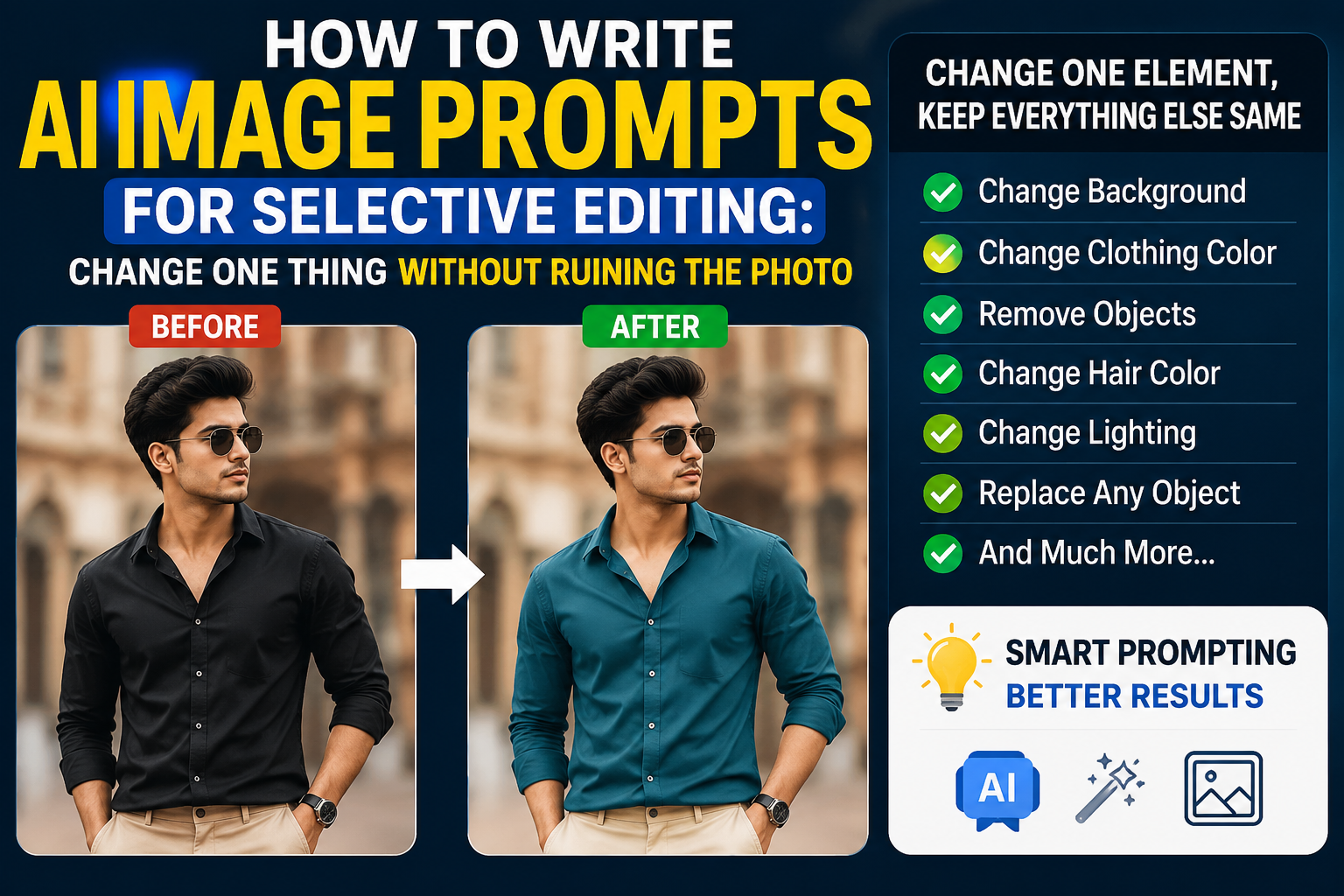
AI image editing has made photo editing much easier, but there is one common problem: you ask an AI tool to change one thing, and it changes several other parts of the image too.
For example, you may want to change only a shirt color, but the AI changes the person’s face, hairstyle, background, lighting, or pose. You may want to remove one object, but the surrounding scene also gets modified.
This is where AI image prompts for selective editing become useful.
A selective editing prompt tells the AI exactly what needs to change and, more importantly, what must remain unchanged. Instead of asking the AI to recreate the entire image, you give it a controlled editing instruction.
In this guide, you will learn how to write better AI image prompts for selective editing, how to protect important parts of an image, and how to fix unwanted changes when the first result is not accurate.
What Is Selective AI Image Editing?
Selective AI image editing means changing a specific part of an existing image while keeping the rest of the image as close to the original as possible.
For example, you can ask an AI image editor to:
- Change a shirt from black to white
- Replace a specific object
- Remove a person from the background
- Change only the sky
- Change hair color
- Replace a handbag
- Modify a product label
- Change the background
- Adjust a specific lighting area
- Add or remove a small object
The main goal is simple:
Change the selected element without unnecessarily changing everything else.
AI editing tools do not always behave like traditional photo-editing software. They may reinterpret parts of the image while generating the requested result. Therefore, your prompt needs to clearly define the editing boundary.
Why AI Changes More Than You Ask
One of the biggest mistakes beginners make is writing a very short instruction such as:
Change the shirt to red.
Although this sounds clear to a human, it may not provide enough information for an AI image editor.
The AI may interpret the instruction while regenerating parts of the image. As a result, you might see:
- A different face
- Different hair
- A changed background
- Different clothing
- A new camera angle
- Altered skin tone
- Different shadows
- Changed image composition
The solution is to separate your prompt into two important parts:
What should change and what should stay unchanged.
Current AI image-editing guidance also commonly recommends explicitly defining the change and the elements that must be preserved.
The Basic Formula for AI Image Prompts for Selective Editing
A simple structure you can use is:
Change + Preserve + Match + Restrictions
1. Change
Clearly describe the exact element you want to modify.
2. Preserve
Tell the AI which important elements must remain unchanged.
3. Match
Tell the AI to match lighting, perspective, shadows, texture, color and image quality.
4. Restrictions
Mention what the AI should not modify or add.
A basic formula looks like this:
Change only [specific element] to [desired result]. Preserve [important elements]. Match the original lighting, perspective, shadows and image quality. Do not change anything else.
This structure is useful because it gives the AI a much narrower editing instruction.
AI Prompt to Change Only Clothing Color
Suppose you have a portrait and want to change only the shirt color.
Instead of writing:
Make the shirt red.
Try:
Edit the provided image and change only the color of the shirt to deep burgundy red. Keep the person’s face, hairstyle, skin tone, body shape, pose, expression, trousers, accessories, background, camera angle and composition unchanged. Preserve the original fabric texture and natural folds. Match the existing lighting and shadows. Do not change anything else in the image.
This prompt clearly identifies both the target and the protected elements.
Why This Prompt Works Better
The AI receives a specific instruction:
Change: shirt color.
Preserve: face, hair, body, pose, background and composition.
Match: lighting, shadows and fabric texture.
Avoid: additional changes.
This makes the editing request much more controlled.
AI Prompt to Change a Background Only
Background replacement is another situation where selective editing is extremely useful.
For example, you may want to replace an ordinary room with a modern studio.
Use:
Change only the background of the provided photo to a clean modern photography studio with soft neutral walls and subtle professional lighting. Keep the person exactly as in the original image, including face, hairstyle, skin tone, clothing, body shape, pose, expression and position. Preserve the original camera perspective and framing. Make the new background lighting naturally match the subject. Do not modify the person or add unnecessary objects.
The important part is that the subject is clearly protected.
Extra Tip
When changing a background, do not only say “keep the person unchanged.”
Mention important details individually when they matter:
- Face
- Hair
- Clothing
- Pose
- Body position
- Accessories
- Expression
- Scale
- Camera angle
This can reduce unwanted changes.
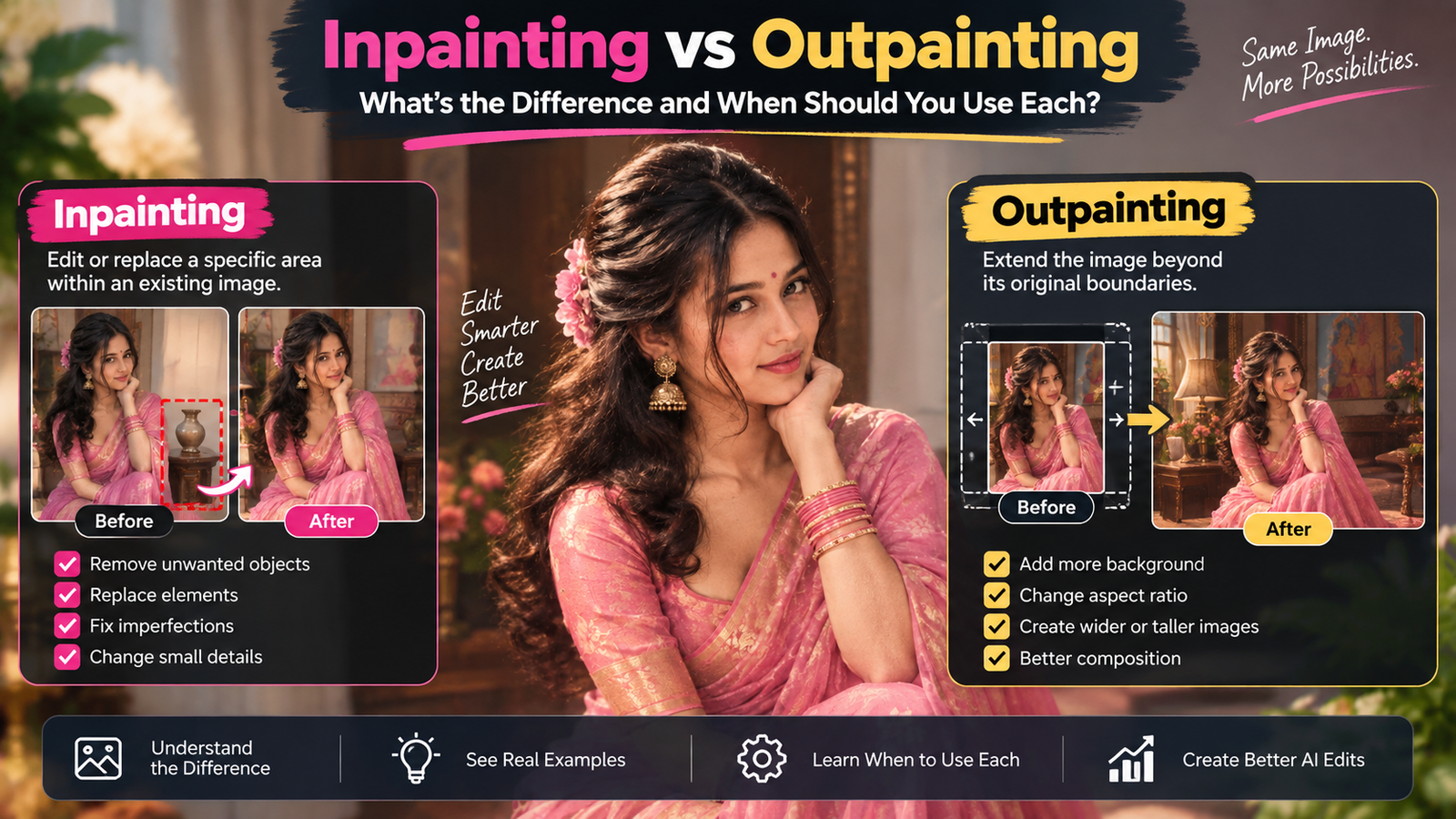
AI Prompt to Remove One Object
Object removal is another excellent use case for selective editing.
For example, imagine a photo containing a plastic bottle on a table.
Use:
Remove only the plastic bottle from the table. Reconstruct the area naturally using the surrounding table texture and lighting. Keep the table, people, furniture, background, colors, shadows, camera angle and composition unchanged. Do not add any new objects. Make the removed area look naturally photographed rather than digitally patched.
The prompt tells the AI exactly what should disappear and what should remain.
AI Prompt to Change Hair Color Only
If you want to experiment with a different hair color without changing your face, use a preservation-focused prompt.
Change only the hair color to natural dark chocolate brown with realistic highlights. Preserve the person’s face, facial features, skin tone, hairstyle, hair length, expression, clothing, pose, background and composition. Keep the original hair texture and lighting direction. Make the new color blend naturally with the existing image. Do not modify any other part of the photo.
This is much more controlled than simply writing:
Change hair color to brown.
AI Prompt to Change an Outfit Without Changing the Person
Changing clothing can sometimes cause the AI to regenerate the person’s body or face.
Try:
Replace only the existing jacket with a premium black leather jacket. Preserve the same person, face, hairstyle, skin tone, body proportions, pose, hands, expression, trousers, shoes, accessories, background and camera angle. Keep the jacket realistic with natural folds and shadows that match the original lighting. Do not change the person’s identity or any other part of the image.
This type of prompt is especially useful for fashion photography.
AI Prompt to Change Only the Sky
For outdoor photos, you can change the sky while keeping the landscape untouched.
Replace only the existing sky with a realistic golden-hour sunset sky containing soft orange and pink clouds. Preserve the buildings, trees, road, people, foreground, shadows, composition, camera angle and original image perspective. Make the sunset lighting naturally interact with the existing scene. Do not alter any objects below the sky.
The phrase “do not alter any objects below the sky” creates a clear boundary.
AI Prompt to Change Lighting Without Changing the Photo
Lighting changes can be difficult because lighting affects the entire image.
For a subtle change, try:
Change only the lighting from flat daylight to soft warm golden-hour lighting. Preserve the same person, face, hairstyle, clothing, pose, background, objects, framing and camera angle. Keep all original details intact. Add realistic warm highlights and soft shadows while maintaining the existing composition. Do not regenerate or redesign the scene.
Instead of asking the AI to “make it cinematic,” describe the actual lighting you want.
AI Prompt to Replace One Object With Another
Suppose you want to replace a coffee cup with a glass.
Replace only the ceramic coffee cup on the table with a clear glass containing iced coffee. Keep the table, hands, person, background, lighting, shadows, camera angle and composition unchanged. Match the size and perspective of the original cup. Add realistic reflections and shadows consistent with the existing light. Do not modify any other objects.
The perspective instruction is important because the new object needs to look like it actually belongs in the scene.
How to Protect a Person’s Face During AI Editing
Face changes are one of the most noticeable problems in AI image editing.
If the person’s identity is important, include a dedicated preservation instruction.
For example:
Preserve the original facial identity exactly. Do not change the face shape, eyes, eyebrows, nose, lips, jawline, skin texture, hairstyle or expression.
You can then describe your actual edit separately.
For example:
Change only the background to a professional office environment. Preserve the original facial identity, hairstyle, clothing, pose and body proportions. Match the lighting naturally with the new environment. Do not modify the person’s appearance.
Important Note
No prompt can guarantee perfect preservation in every AI editor. Different tools have different image-editing capabilities, and some may still reinterpret parts of the source image.
For important edits, inspect the result carefully and make smaller follow-up corrections instead of repeatedly asking for a completely new image.
The “Change Only” Technique
One of the simplest techniques for selective editing is to explicitly use language such as:
- Change only the shirt color.
- Remove only the object in the background.
- Replace only the sky.
- Modify only the hairstyle.
- Keep everything else unchanged.
- Do not alter the original composition.
- Do not modify the person’s face.
- Do not add additional objects.
However, simply writing “change only” is not always enough.
You should still describe what must be preserved.
For example:
Change only the wall color from white to light beige. Preserve the furniture, floor, windows, decorations, shadows, lighting, camera angle and room layout. Do not add or remove anything else.
This is much more specific.
Use a Preserve List in Your Prompt
A preserve list is one of the most useful techniques for selective AI editing.
Instead of saying:
Keep everything the same.
Write:
Preserve the person’s face, hairstyle, expression, clothing, pose, hands, accessories, background, camera angle, framing, lighting direction and overall composition.
The second version gives the AI more information about what “same” actually means.
Example Preserve List
You can copy this structure:
Preserve:
- Face and identity
- Hairstyle
- Skin tone
- Expression
- Body proportions
- Pose
- Clothing
- Accessories
- Background
- Camera angle
- Composition
- Lighting direction
- Shadows
- Image quality
Then describe your requested change.
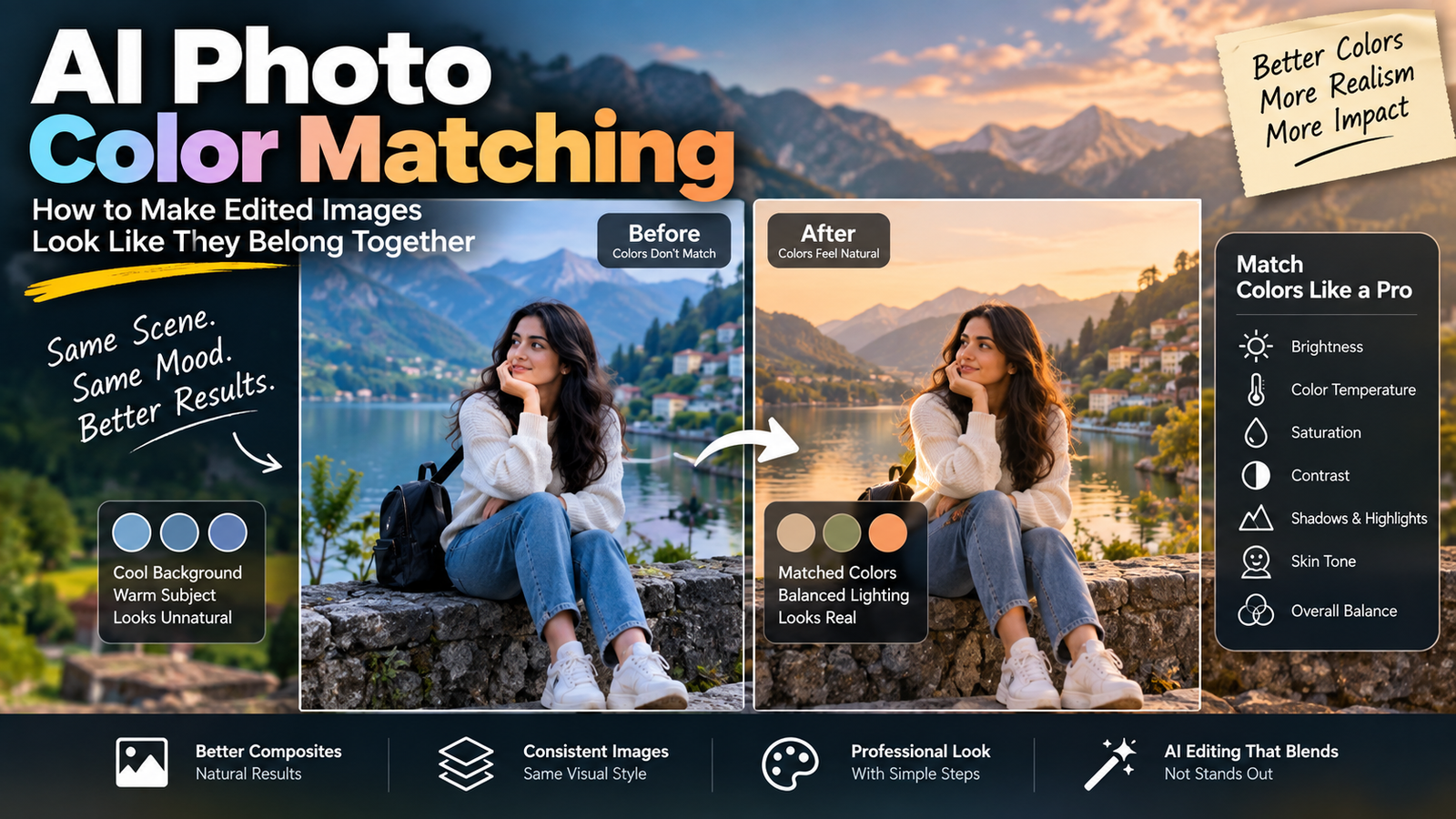
Use a Match Instruction for Realistic Results
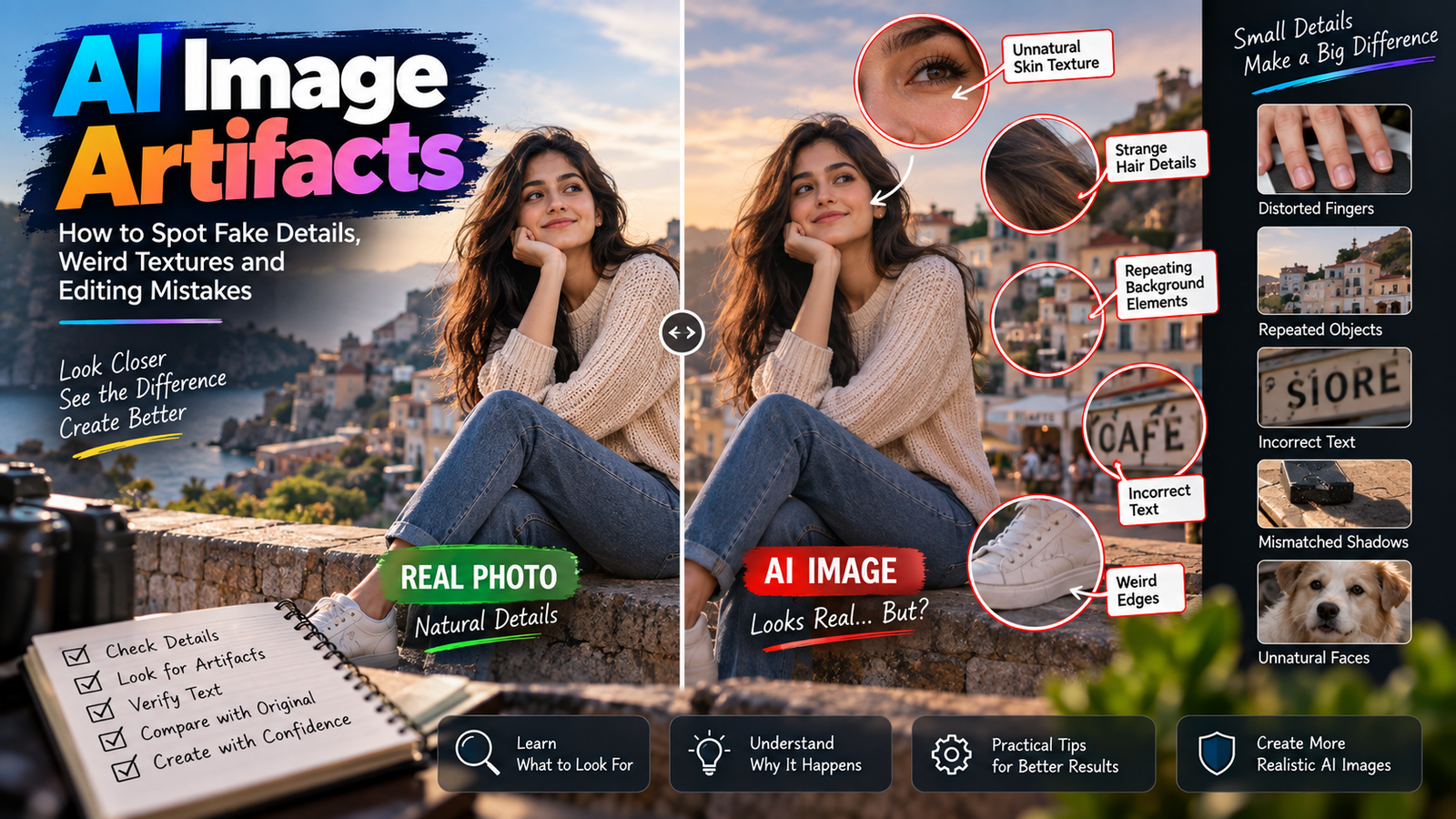
Sometimes the AI successfully changes the requested object but the result still looks fake.
This usually happens because the new element does not match the original image.
For better integration, tell the AI to match:
- Lighting direction
- Shadow direction
- Perspective
- Color temperature
- Texture
- Sharpness
- Depth of field
- Image grain
- Reflections
For example:
Match the replacement object’s perspective, lighting direction, shadow softness, color temperature, sharpness and texture with the original photograph.
This helps the new element look like part of the original image rather than something pasted into it.
Avoid Vague Instructions
Avoid prompts such as:
Make it better.
Make it realistic.
Make it professional.
Make the photo amazing.
These instructions are subjective.
Instead, describe the actual result.
For example, instead of:
Make the lighting better.
Write:
Change the harsh overhead lighting to soft natural window light coming from the left side while preserving the subject, background and composition.
Specific instructions are easier for an AI editor to interpret.
Do Not Put Too Many Changes in One Prompt
If you want to change:
- Background
- Clothing
- Hair
- Lighting
- Pose
- Camera angle
all at once, the AI has many opportunities to alter details that you wanted to preserve.
A better workflow is:
Edit 1
Change the background.
Edit 2
Change the clothing.
Edit 3
Adjust the lighting.
Edit 4
Make a small final correction.
This makes it easier to identify which instruction caused a problem.
Current image-editing guidance also favors focused edits and iterative corrections when preservation is important.
What to Do When the AI Changes the Wrong Things
Sometimes the first result will still contain unwanted changes.
Don’t immediately start from the original image again.
First identify exactly what changed.
For example:
- Face became slightly different
- Background changed too much
- Hair became longer
- Shirt color is correct but texture changed
- Lighting became too dark
Then write a correction prompt.
Example
In the previous result, the face changed from the original image. Restore the original facial appearance and identity. Keep the newly changed shirt color exactly as it is. Do not change the background, clothing, pose, lighting or composition. Only restore the original face.
This is much better than saying:
Try again.
A Universal AI Image Prompt for Selective Editing
If you regularly edit photos with AI, save this template:
Edit the provided image. Change only [SPECIFIC ELEMENT] to [DESIRED RESULT]. Preserve [FACE / IDENTITY / POSE / CLOTHING / BACKGROUND / COMPOSITION / OTHER IMPORTANT DETAILS]. Match the original lighting, perspective, shadows, texture, color temperature and image quality. Do not add, remove or modify anything else. Keep all non-target elements as close to the original image as possible.
Replace the words inside brackets according to your project.
10 Copy-Paste Selective Editing Prompts
1. Change Shirt Color
Change only the shirt color to deep navy blue. Preserve the person’s face, hairstyle, skin tone, pose, trousers, shoes, accessories, background and composition. Keep the original fabric texture and lighting. Do not change anything else.
2. Change Hair Color
Change only the hair color to natural dark brown. Preserve the person’s facial identity, hairstyle, hair length, expression, skin tone, clothing and background. Maintain realistic hair texture and lighting. Do not modify any other part of the image.
3. Remove an Object
Remove only the unwanted object located on the table. Reconstruct the area naturally using the surrounding texture and lighting. Preserve all people, furniture, background elements, shadows and composition. Do not add new objects.
4. Change Background
Replace only the background with a clean modern studio. Preserve the person’s face, hair, clothing, pose, expression, body proportions and position. Match the new environment’s lighting with the subject. Do not change the person.
5. Change Shoes
Replace only the shoes with clean white minimalist sneakers. Preserve the person’s legs, trousers, pose, body proportions, background, lighting and camera angle. Match the original perspective and shadows. Do not change anything else.
6. Change Wall Color
Change only the wall color from white to warm beige. Preserve all furniture, decorations, floor, windows, shadows, lighting, room layout and camera perspective. Do not add or remove anything.
7. Change Sky
Replace only the sky with a realistic soft sunset. Preserve the buildings, trees, road, people, foreground and composition. Match the sunset lighting naturally with the existing scene. Do not alter objects below the sky.
8. Remove a Person
Remove only the person standing in the distant background on the left. Reconstruct the background naturally using surrounding textures and perspective. Preserve the main subject, face, clothing, pose, lighting and composition. Do not modify any other person or object.
9. Change Product Color
Change only the product color from matte black to deep metallic silver. Preserve the exact product shape, dimensions, logo placement, text, background, camera angle, reflections and composition. Maintain realistic material reflections. Do not change the product design.
10. Change Lighting
Change only the lighting to soft warm evening light coming from the left. Preserve the person’s face, clothing, pose, background, objects, camera angle and composition. Keep natural shadows and realistic skin tones. Do not redesign or regenerate the scene.
Common Mistakes in Selective AI Editing
Mistake 1: Giving a One-Line Prompt
A very short prompt may not explain what should remain unchanged.
Mistake 2: Not Mentioning Identity
If editing a portrait, explicitly protect the face and identity.
Mistake 3: Using Too Many Adjectives
Words such as “beautiful,” “perfect,” “amazing” and “ultra-premium” do not necessarily provide useful editing constraints.
Mistake 4: Making Too Many Changes
Large editing requests increase the possibility of unwanted changes.
Mistake 5: Ignoring Lighting
A new object may look artificial if its shadows and lighting do not match the original.
Mistake 6: Repeating the Same Prompt
If the result is wrong, identify the specific problem and write a targeted correction instead of blindly repeating the same instruction.
Best Practices for Better AI Photo Editing Results
For reliable selective editing, follow these simple rules:
- Change one main thing at a time.
- Clearly identify the target element.
- Describe the desired replacement or modification.
- List important elements that must remain unchanged.
- Protect facial identity when editing portraits.
- Match lighting and shadows.
- Match perspective and scale.
- Avoid vague instructions.
- Inspect the result before making another edit.
- Use targeted correction prompts when something goes wrong.
The key idea is to treat an AI editing prompt more like an editing brief than a creative description.
AI Image Prompts for Selective Editing: Quick Formula
Remember this simple formula:
CHANGE → PRESERVE → MATCH → RESTRICT
CHANGE
What exactly should be different?
PRESERVE
What must remain unchanged?
MATCH
What lighting, perspective, texture and quality should the new element follow?
RESTRICT
What should the AI avoid adding, removing or modifying?
For example:
Change only the jacket to dark brown. Preserve the person’s face, hair, pose, trousers, shoes, background and composition. Match the original lighting, shadows and perspective. Do not modify anything else.
This simple structure can be adapted to almost any AI photo editing task.
Frequently Asked Questions
What are AI image prompts for selective editing?
AI image prompts for selective editing are instructions designed to modify a specific part of an existing image while keeping other important elements unchanged.
How do I stop AI from changing the face?
Clearly tell the AI to preserve the original facial identity, facial features, hairstyle, expression and skin tone. Also specify that no other part of the image should be changed.
Can AI change only one object in a photo?
Yes. Many AI image editors can perform targeted edits, especially when you clearly identify the object and describe what should remain unchanged.
Should I use “change only” in an AI editing prompt?
Yes, “change only” can help communicate the intended editing boundary. However, it works better when combined with a detailed preserve list and instructions about lighting and perspective.
Why does AI change the background when I only change clothing?
AI image editors can reinterpret parts of an image during generation. A detailed preservation instruction can reduce unwanted background changes.
Can I use the same selective editing prompt with different AI tools?
The general prompt structure can be adapted to different AI image editors. However, individual tools may have different editing controls, masking features and image-reference capabilities, so results can vary.
Is one prompt enough for perfect AI editing?
Not always. AI image editing is not guaranteed to preserve every detail perfectly. If the first result contains unwanted changes, use a focused follow-up instruction to correct only the problematic area.
Final Thoughts
The biggest secret behind better AI photo editing is not using a longer prompt. It is giving the AI clear boundaries.
When you want to change one part of a photo, clearly explain what should change and what must stay the same. Add instructions for matching lighting, perspective, shadows and texture so the edited element fits naturally into the original image.
The CHANGE → PRESERVE → MATCH → RESTRICT formula is a simple starting point for writing better AI image prompts for selective editing.
Instead of saying:
“Change the shirt.”
Tell the AI exactly what to change, protect the important details, match the existing image, and prevent unnecessary modifications.
That small difference can make AI photo editing much more controlled and predictable.