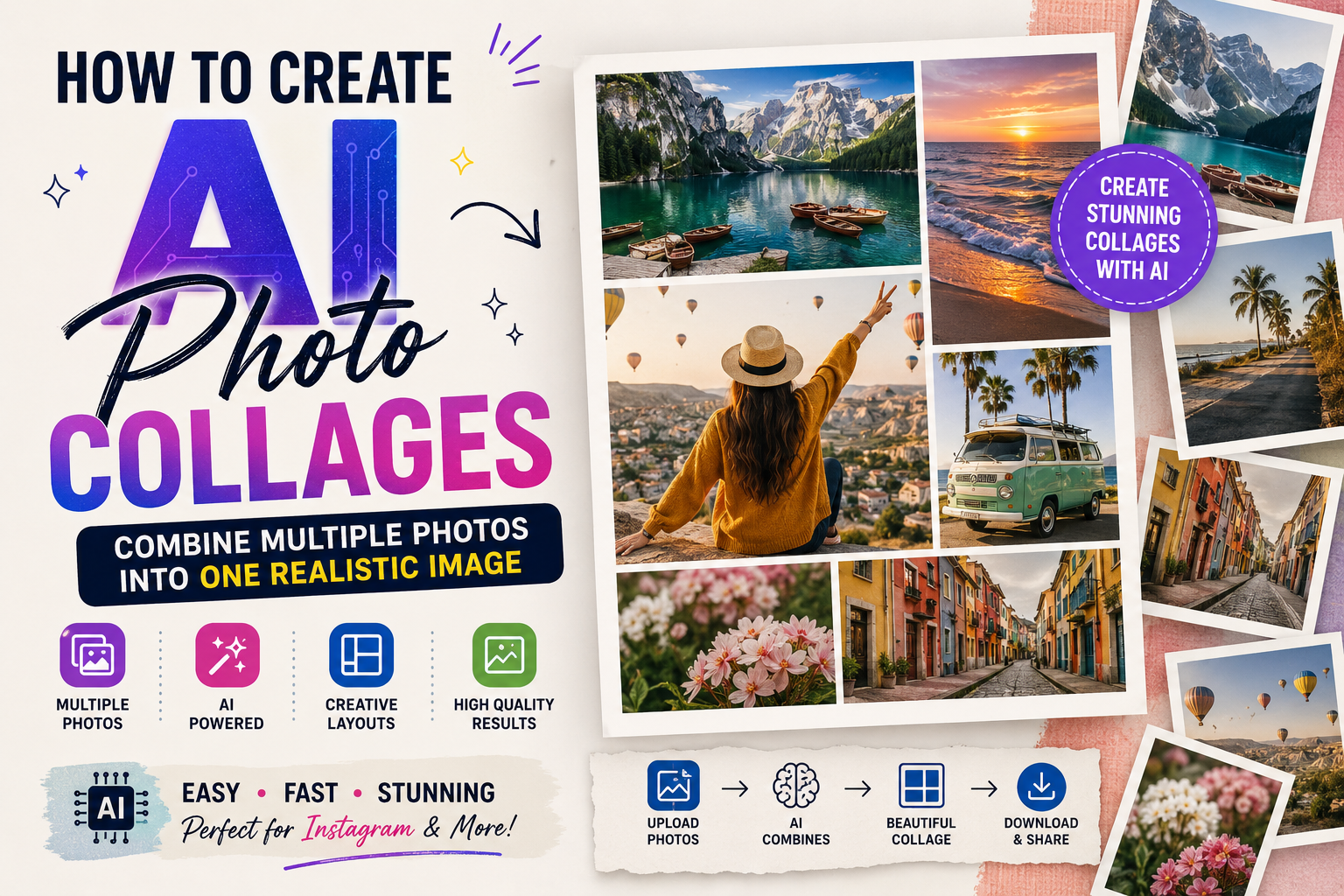
Creating a photo collage traditionally means opening a design app, selecting several pictures, resizing them, adjusting their positions, and arranging everything manually. AI image editing has changed this process by making it possible to combine multiple photos into a single creative composition using natural-language instructions.
With the right workflow, you can create an AI photo collage from portraits, travel pictures, family photos, product images, event photographs, or different moments from the same day.
The challenge is not simply putting several pictures together. A good AI collage should look intentional, balanced, and visually connected. Faces should remain recognizable, proportions should look natural, and the lighting should make sense across the final composition.
In this guide, you will learn how to create AI photo collages, how to combine multiple photos with AI, how to write better collage prompts, how to maintain photo quality, and how to fix common problems.
What Is an AI Photo Collage?
An AI photo collage is a composition created or enhanced with an artificial intelligence image-editing tool using multiple photographs or visual references.
Instead of manually placing every image on a canvas, you can describe the desired arrangement and visual style to an AI tool.
For example, you could ask for:
- Three travel photos arranged into one editorial collage
- Multiple portraits combined into a family-style composition
- Several product photos presented in one promotional layout
- Different memories from a trip combined into one visual
- Multiple outfit photos arranged into a fashion collage
- Several photos transformed into a scrapbook-style composition
The exact capabilities depend on the AI tool you use. Some tools are better at editing an existing image, while others are better suited to generating a new composition from several references.
How to Create AI Photo Collages
Creating an AI photo collage becomes easier when you approach it as a design problem rather than simply asking the AI to “combine photos.”
A good workflow has several steps.
Step 1: Choose the Photos You Want to Combine
Start with the photographs you want to use.
Try to select images that have:
- Reasonably good resolution
- Clear subjects
- Minimal blur
- Visible faces when identity matters
- Similar visual quality
- Useful compositions
- No unnecessary screenshots or heavy compression
You don’t necessarily need photographs taken with the same camera.
However, extremely different image quality can make the final collage look inconsistent.
Choose Photos With a Clear Purpose
Before uploading the images, decide why you are combining them.
For example:
Travel collage:
Use photos showing different locations or moments from the same trip.
Fashion collage:
Use different outfits or poses.
Family collage:
Use photographs featuring different family members or memories.
Product collage:
Use several angles or variations of the same product.
Having a clear purpose makes it easier to create a coherent composition.
Step 2: Decide the Collage Layout
Before writing your prompt, decide how you want the images arranged.
Possible layouts include:
- Two-photo comparison
- Three-photo vertical layout
- Four-photo grid
- Magazine-style editorial layout
- Polaroid arrangement
- Scrapbook composition
- Overlapping photographs
- Film-strip layout
- Before-and-after comparison
- Central portrait with supporting images
The layout should match the purpose of the collage.
For example, a clean grid can work well for product images, while an overlapping scrapbook style may work better for travel memories.
Step 3: Decide the Final Aspect Ratio
Think about where you will use the finished image.
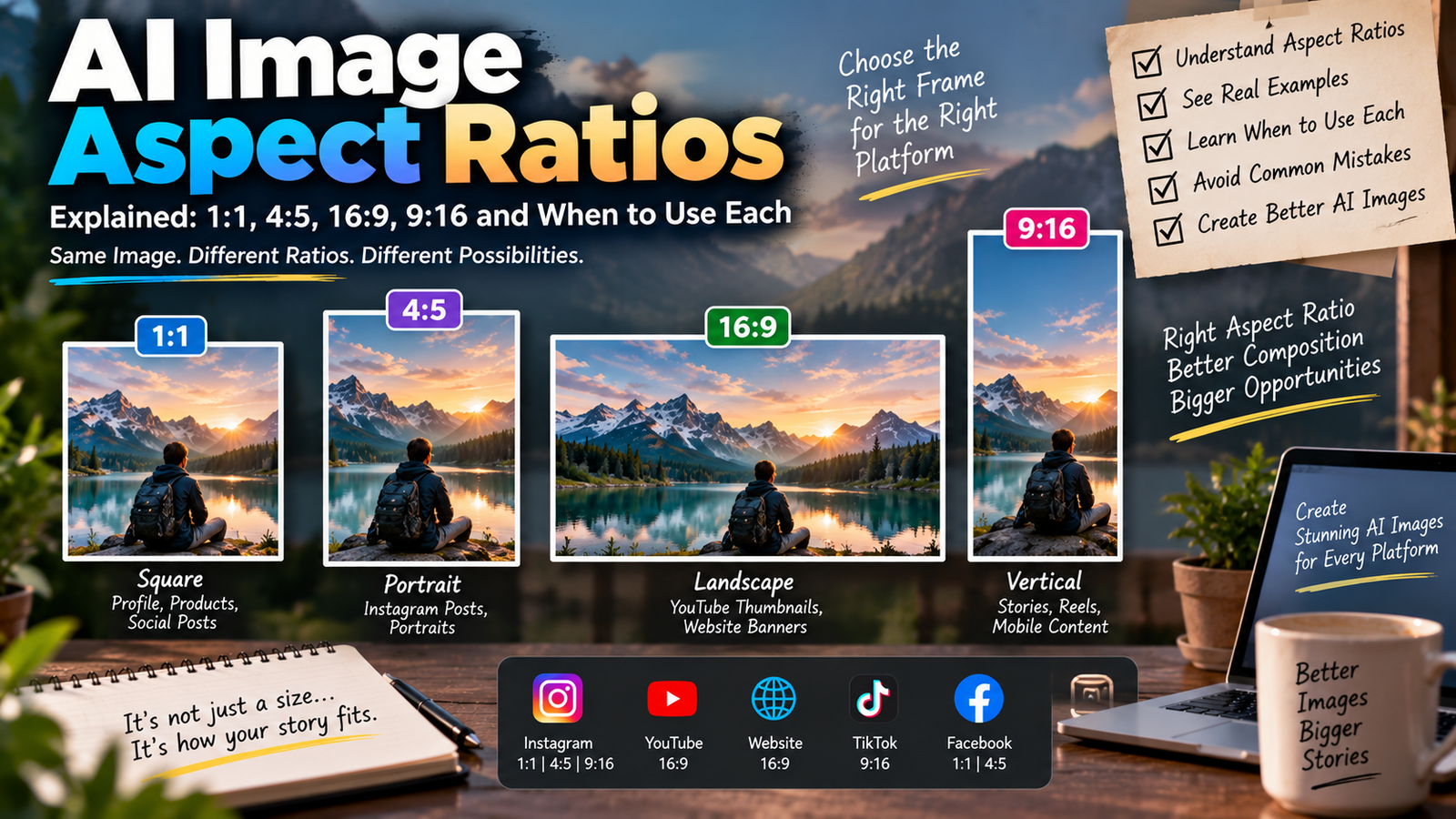
For Instagram, a vertical composition can be useful.
For Stories and Reels, a 9:16 layout may be appropriate.
For a standard social-media feed portrait, a 4:5 composition can provide more vertical space.
For desktop wallpapers or banners, a wider composition may work better.
Tell the AI the desired orientation when the tool supports composition instructions.
Example
Create a vertical 4:5 composition suitable for an Instagram feed post.
Or:
Create a vertical 9:16 composition suitable for an Instagram Story.
Step 4: Upload the Reference Photos
Upload the photographs to an AI tool that supports the image-editing or reference-image workflow you intend to use.
If the tool allows multiple image references, upload them in a logical order.
For example:
Image 1: Main portrait
Image 2: Secondary portrait
Image 3: Background or location
Image 4: Additional detail
Not every AI image tool handles multiple references in exactly the same way, so the available features can vary.
Best AI Photo Collage Prompt
Once your photos are uploaded, explain exactly what you want the AI to create.
Here is a general-purpose prompt:
Combine the uploaded reference photos into one cohesive and realistic photo collage. Preserve the recognizable identity and important visual details of each person. Arrange the images in a clean editorial composition with balanced spacing and natural visual hierarchy. Keep facial features, skin tones, clothing details and important objects recognizable. Match the overall color treatment and lighting as much as possible without unnecessarily altering the original photographs. Create a polished, realistic collage with a professional photography and magazine-inspired layout. Avoid distorted faces, duplicated people, unnatural proportions, excessive smoothing and artificial-looking details.
This prompt gives the AI both creative direction and preservation instructions.
AI Photo Collage Prompts for Different Styles
Different situations require different layouts.
1. Minimal Instagram Photo Collage Prompt
Combine the uploaded photos into a clean minimalist Instagram collage. Arrange the images with balanced spacing, subtle borders and a modern editorial layout. Preserve the original people, facial identity, clothing and important details. Use a neutral visual style, natural colors and clean composition. Avoid unnecessary decorations, excessive effects and distorted faces. Create a polished vertical composition suitable for an Instagram feed post.
2. Travel Memory Collage Prompt
Create a realistic travel memory collage using all uploaded photographs. Arrange the images in an aesthetically balanced editorial layout that shows different moments from the trip. Preserve the original people, locations and important details. Use natural colors, subtle film-inspired texture, realistic lighting and a cohesive travel photography style. Make the final composition feel like a professionally designed travel journal page.
3. Family Photo Collage Prompt
Combine the uploaded family photographs into one warm and natural photo collage. Preserve each person’s recognizable facial identity, age-appropriate appearance, clothing details and natural skin tones. Arrange the photographs in a balanced family-memory layout with subtle spacing and a clean background. Keep the composition realistic and avoid changing people’s faces or inventing unnecessary details.
4. Fashion Photo Collage Prompt
Create a sophisticated fashion editorial collage using the uploaded photographs. Preserve the original facial identity, clothing details, hairstyles and body proportions. Arrange the photographs using an elegant magazine-inspired composition with varied image sizes, balanced negative space and consistent visual treatment. Use realistic photography, subtle contrast and refined editorial styling without making the images look artificial.
5. Polaroid-Style Collage Prompt
Arrange the uploaded photographs as a realistic collection of Polaroid-style prints placed on a clean surface. Preserve the original photographs and recognizable facial details. Give each image a slightly different natural angle while maintaining realistic perspective and shadows. Create an authentic casual-memory aesthetic with subtle photographic texture and balanced composition.
6. Before-and-After Photo Collage Prompt
Create a clear before-and-after photo collage using the uploaded images. Place the original image on one side and the edited version on the other with a clean visual separation. Preserve the important details of both photographs. Use a professional comparison layout with balanced spacing, realistic colors and clear visual hierarchy. Do not unnecessarily alter either image.
How to Keep Faces Consistent in an AI Collage
Face consistency is especially important when several photographs contain the same person.
AI tools can sometimes reconstruct facial features while creating a new composition. This can result in a person looking slightly different from one image to another.
To reduce this problem, clearly state which elements should remain unchanged.
For example:
Preserve the original facial identity of each person. Do not merge, replace, redesign or significantly alter facial features. Keep each person’s natural face shape, eyes, nose, lips, hairstyle and skin tone recognizable.
However, prompts cannot guarantee perfect identity preservation with every AI model.
The source photographs and the specific tool also affect the final result.
How to Make Different Photos Look Like One Collage
A collage can contain completely different photographs and still feel connected.
The key is visual consistency.
Match the Color Direction
If one image has a warm orange tone and another has a strong blue cast, the collage may look disconnected.
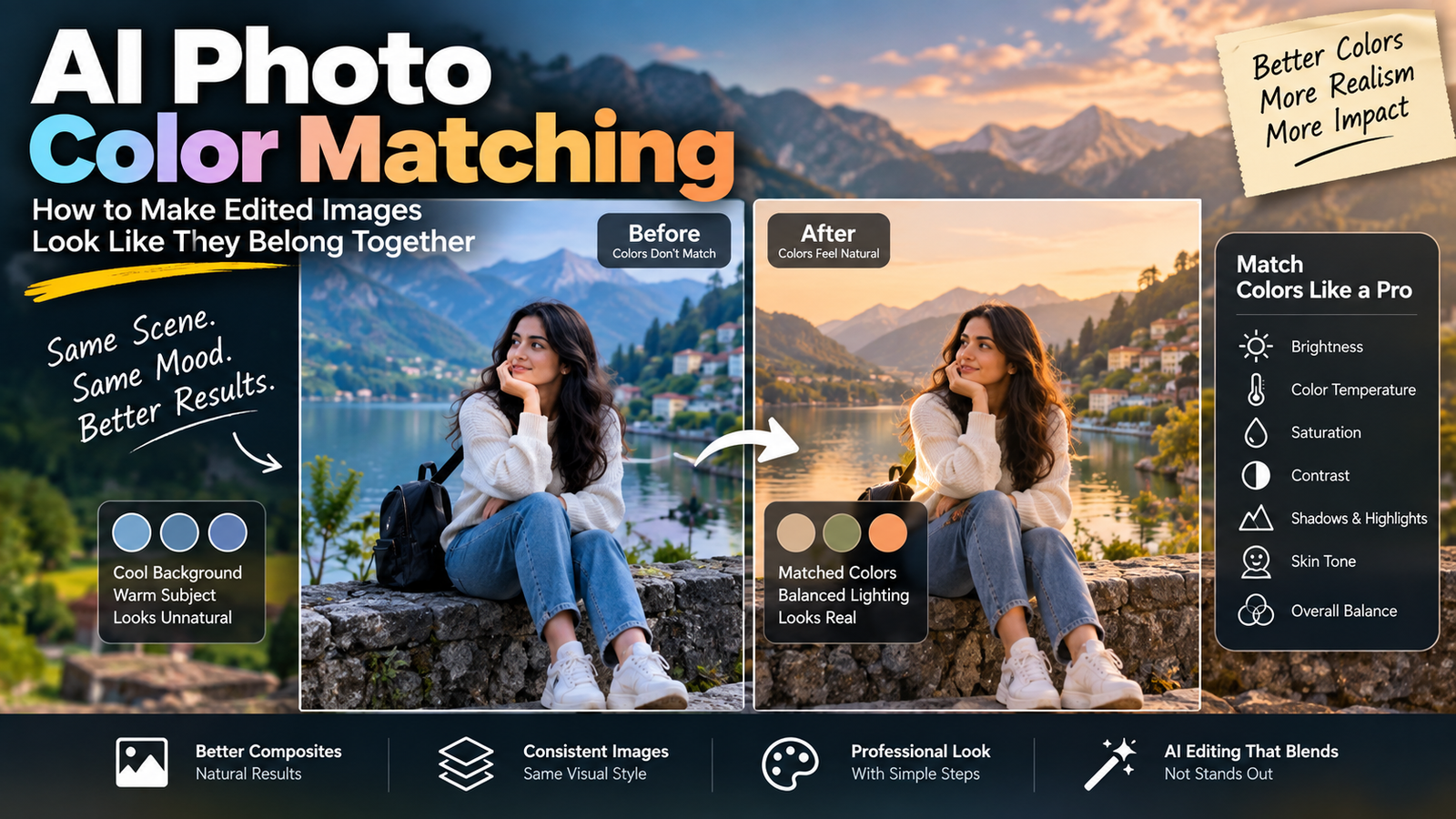
You can ask the AI to create a consistent overall color treatment.
For example:
Apply a subtle cohesive color treatment across the collage while preserving natural skin tones and important original colors.
Match Lighting Carefully
Lighting does not need to be identical in every photograph.
However, the final design should not make the images look randomly assembled.
Use phrases such as:
Maintain natural lighting differences between the original photographs while creating a cohesive overall presentation.
This is often better than forcing every image into identical lighting.
Keep the Background Simple
If every photograph has a highly detailed background, the collage can become visually crowded.
A simple surrounding canvas or clean background can help the photographs stand out.
How to Create a Realistic AI Collage Without Changing the Original Photos
Sometimes you don’t want AI to regenerate the photographs.
You simply want them arranged together.
In that situation, make your instruction very clear.
Use This Prompt
Arrange the uploaded photographs into a single collage without recreating or replacing the original people. Preserve each photograph as faithfully as possible. Do not change facial features, clothing, body proportions, important objects or locations. Focus primarily on composition, spacing, cropping and overall presentation. Create a clean professional collage with natural borders and balanced visual hierarchy.
This is particularly useful when preserving the original photographs is more important than creating a new scene.
How to Fix Common AI Photo Collage Problems
Even a detailed prompt may produce imperfect results.
Here are some common problems and ways to correct them.
Problem 1: Faces Look Different
If a person’s face changes, ask the AI to correct only the face.
Correction Prompt
Restore the person’s facial appearance using the original reference photograph. Preserve the natural face shape, eyes, nose, lips, hairstyle and skin tone. Do not change the collage layout or any other photograph.
Problem 2: People Get Merged Together
Sometimes AI can accidentally combine people or duplicate body parts.
Correction Prompt
Keep each person separate and clearly identifiable. Do not merge facial features, bodies, clothing or limbs between people. Preserve the original number of people in each photograph and maintain natural anatomy.
Problem 3: Images Become Too Similar
If the AI starts making different photographs look identical:
Preserve the unique characteristics of each original photograph. Do not duplicate poses, facial expressions, clothing, backgrounds or camera angles. Keep each reference image visually distinct while maintaining a cohesive collage design.
Problem 4: Important Parts Are Cropped
A collage layout may accidentally cut off faces or important objects.
Correction Prompt
Adjust the crop and spacing so that all important faces and primary subjects remain fully visible. Preserve the overall collage layout while providing sufficient space around each photograph.
Problem 5: Background Looks Artificial
If the collage background looks fake:
Simplify the surrounding background and use a clean realistic surface with natural shadows. Keep the original photographs unchanged and avoid adding unnecessary objects.
How to Make an AI Collage Look Professional
A professional collage usually does not require dozens of effects.
Focus on a few design principles.
Use Visual Hierarchy
Decide which photograph should attract attention first.
You can make the main image slightly larger while keeping secondary images smaller.
Use Negative Space
Don’t fill every empty area.
Clean space around photographs can make the overall composition easier to understand.
Avoid Too Many Effects
Heavy glow, excessive particles, strong shadows and multiple decorative elements can make the collage look artificial.
A simpler layout often feels more premium.
Keep the Number of Photos Reasonable
More photographs do not automatically create a better collage.
For many designs, three to six images can provide enough variety without making the composition too crowded.
The ideal number depends on the purpose and final dimensions.
How to Create a Photo Collage for Instagram
If your goal is Instagram, plan the final composition around the platform’s viewing experience.
For a feed post, a vertical 4:5 composition can make good use of screen space.
For Stories and Reels, use a 9:16 layout.
Instagram Collage Prompt
Create a vertical Instagram photo collage using the uploaded photographs. Use a clean 4:5 composition with one primary image and several supporting photographs. Preserve the original people and important details. Use balanced spacing, subtle borders, natural colors and a modern editorial layout. Keep the main subjects clearly visible and avoid excessive decoration.
If you intend to add text, leave some clean space in the composition and add the final typography separately in a design editor.
How to Create a Photo Collage for a Story or Reel Cover
For Stories and Reel covers, vertical space becomes more important.
Use:
Create a vertical 9:16 photo collage with the main subject positioned inside the central safe area. Keep important faces and objects away from the extreme top and bottom edges. Use a clean editorial layout with balanced spacing and realistic shadows.
This makes it easier to adapt the image for different social-media placements.
AI Photo Collage Mistakes to Avoid
Don’t Upload Extremely Low-Quality Images
AI cannot always recover information that does not exist in the source image.
Whenever possible, start with the highest-quality original photographs available.
Don’t Give Conflicting Instructions
Avoid prompts such as:
Create a minimal, extremely detailed, heavily decorated, completely empty, colorful black-and-white collage.
Conflicting instructions make the desired result unclear.
Don’t Ask for Too Many Transformations
If your main goal is to combine photographs, don’t simultaneously ask the AI to change everyone’s clothes, faces, locations, poses and lighting unless that transformation is actually necessary.
Don’t Rely on AI-Generated Text
If you need names, dates or captions inside the collage, consider adding the final text separately.
AI-generated typography can contain spelling and formatting errors.
Always Check the Final Image
Before publishing or sharing the collage, inspect:
- Faces
- Hands
- Fingers
- Clothing
- Objects
- Cropping
- Shadows
- Reflections
- Background
- Text
- Image quality
Small AI errors can become obvious when the image is viewed at full resolution.
Best Workflow for Creating AI Photo Collages
A simple workflow can make the process more reliable.
Step 1: Select Your Photos
Choose clear and relevant photographs.
Step 2: Decide the Purpose
Determine whether it is for Instagram, a travel memory, family photos, a product presentation or another use.
Step 3: Choose the Layout
Select a grid, editorial, Polaroid, scrapbook or before-and-after arrangement.
Step 4: Upload the References
Use an AI tool that supports the image workflow you need.
Step 5: Write a Specific Prompt
Explain the layout, preservation requirements, style and aspect ratio.
Step 6: Review the Result
Look for identity changes, cropping problems and unrealistic details.
Step 7: Make Targeted Corrections
Correct only the problematic area rather than regenerating everything.
Step 8: Add Final Text Separately
If the collage needs a title, date or caption, add it using a design editor for better control.
AI Photo Collage Prompt Template
You can save this template and customize it for future projects:
Combine the uploaded reference photographs into a [COLLAGE STYLE] composition for [PURPOSE]. Preserve the original people, facial identities, clothing, important objects and key visual details. Arrange the photographs using [LAYOUT STYLE] with balanced spacing, clear visual hierarchy and natural cropping. Use a [COLOR STYLE] overall appearance while maintaining natural skin tones and important original colors. Create a polished [ASPECT RATIO] composition with realistic shadows, clean edges and professional visual presentation. Avoid distorted faces, duplicated people, unnatural anatomy, excessive effects, unnecessary objects and artificial-looking details.
Replace the words in brackets according to your project.
Frequently Asked Questions
Can AI combine multiple photos into one collage?
Yes, depending on the AI tool and its current image capabilities. Some tools can work with multiple reference images, while others may be better suited to arranging or editing an existing composition.
Can I create an AI photo collage for Instagram?
Yes. You can design a vertical collage for Instagram and specify an appropriate aspect ratio, layout and amount of negative space.
How many photos should I use in an AI collage?
There is no universal number. Three to six photographs can be a practical starting point, but the best number depends on the layout, image dimensions and purpose of the collage.
Can AI keep everyone’s face unchanged?
AI can sometimes preserve recognizable facial characteristics, especially when clear reference images and explicit instructions are provided. However, exact identity preservation is not guaranteed across every tool or workflow.
How do I stop AI from changing my original photos?
Tell the AI to preserve the original photographs and focus only on arrangement, cropping, spacing and presentation. If the tool cannot reliably perform that type of editing, a traditional design editor may provide better control.
Can I add text to an AI photo collage?
Yes. For important names, dates or captions, adding text separately after generating the visual is often preferable because it gives you accurate spelling and better typography control.
Can beginners create AI photo collages?
Yes. Beginners can start with a simple two- or three-photo layout and gradually experiment with editorial, Polaroid, scrapbook and other styles.
Final Thoughts
Learning how to create AI photo collages is not just about combining several images into one file. The best results come from choosing the right photographs, deciding on a clear layout, preserving important details and giving the AI specific instructions.
Start with a simple composition instead of trying to include every possible effect. Use a clear reference photo, define the purpose of the collage and specify what should remain unchanged.
If the first result contains mistakes, don’t immediately start over. Identify the problem and give the AI a focused correction instruction.
With this workflow, you can turn separate photographs into polished Instagram posts, travel memories, family compositions, fashion layouts and creative visual stories while keeping the original images recognizable.