A YouTube thumbnail is often the first thing people notice before deciding whether to watch a video. Even when a video contains useful information, a weak or confusing thumbnail can make it harder to attract clicks.
Creating a good thumbnail used to require design skills and tools such as Photoshop or other graphic design software. Today, AI can make the process much easier.
With the right AI tools and a clear idea, beginners can create thumbnail concepts, generate visual elements, remove backgrounds, improve images and build attractive designs without starting everything from scratch.
In this guide, you’ll learn how to use AI to create a YouTube thumbnail, what makes a thumbnail effective, how to write useful prompts and which mistakes you should avoid.
What Makes a Good YouTube Thumbnail?
Before using AI, it’s important to understand what you’re trying to create.
A good thumbnail should be:
- Easy to understand
- Visually clear
- Relevant to the video
- Readable on a small screen
- Focused on one main idea
- Visually different from competing thumbnails
- Honest about what the video offers
A thumbnail doesn’t need to contain lots of information. In many cases, a simple design with one strong image and a short headline can work better than a crowded layout.
Why Use AI for YouTube Thumbnails?
AI can speed up several parts of the thumbnail creation process.
For example, you can use AI to:
- Generate thumbnail concepts
- Create background images
- Generate visual elements
- Remove image backgrounds
- Improve existing photos
- Suggest headline ideas
- Create different design variations
- Turn an idea into a visual composition
The biggest advantage is speed. Instead of spending hours creating every element manually, you can use AI to create a starting point and then refine the design yourself.
Step 1: Decide What the Video Is About
Before writing an AI prompt, identify the main message of your video.
Suppose your video is about:
“How to Edit Photos With AI.”
Your thumbnail shouldn’t try to explain every feature of AI photo editing.
Instead, focus on one visual idea, such as:
Before → AI Editing → After
This gives viewers an immediate understanding of what the video is about.
Step 2: Choose One Main Visual
A thumbnail becomes confusing when too many elements compete for attention.
Choose one primary visual, such as:
- A person’s face
- A smartphone
- A product
- A before-and-after comparison
- A dramatic location
- A computer screen
- An AI-generated image
You can then add a few supporting elements around it.
The main subject should remain easy to recognize even when the thumbnail is displayed at a small size.
Step 3: Write an AI Thumbnail Prompt
Once you know the concept, you can describe it to an AI image generator.
For example:
Create a modern YouTube thumbnail about AI photo editing. Show a clear before-and-after portrait comparison, with the original image on the left and an improved realistic version on the right. Add a smartphone and subtle AI visual elements. Use a clean, high-contrast composition with a professional technology-inspired design. Leave enough empty space on the left for a short headline. Make the main subject large and easy to recognize on a mobile screen.
Notice that the prompt doesn’t just say “make a YouTube thumbnail.”
It explains the subject, composition, visual elements and available space for text.
Step 4: Leave Space for Text
One common mistake when generating thumbnails with AI is asking the AI to create too much text inside the image.
AI image generators can sometimes produce incorrect spelling or distorted text.
A better workflow is often to generate the visual first and add the final text separately using a design editor.
For example, you could generate:
Visual: Person + phone + before/after image
Then add:
Text:
AI PHOTO EDITING
10 EASY TIPS
This gives you much more control over typography and spelling.
Step 5: Keep the Thumbnail Text Short
You don’t need to place the entire video title on the thumbnail.
If your video title is:
How to Create Professional YouTube Thumbnails Using AI
your thumbnail could simply say:
CREATE BETTER THUMBNAILS
or:
AI THUMBNAIL TRICK
Short text is generally easier to read, especially on smartphones.
Try to communicate the main idea using only a few words.
Step 6: Use Strong Visual Contrast
A thumbnail needs to remain visible when surrounded by dozens of other videos.
Contrast can help separate the main elements.
You can create contrast through:
- Light and dark areas
- Large and small elements
- Different background and text tones
- Subject separation
- Bold typography
- Clear outlines
However, adding too many bright elements can make the design look messy.
The goal is clarity, not simply using as many effects as possible.
Step 7: Use AI to Create Backgrounds
If you don’t have a suitable background image, AI can generate one based on your concept.
For example, for a technology video, you might ask for:
A modern futuristic workspace with a large monitor, subtle blue lighting, clean desk, realistic depth of field and enough empty space on the left for thumbnail text.
You can then place your main subject over that background.
This approach gives you more control than asking AI to generate the entire thumbnail in one step.
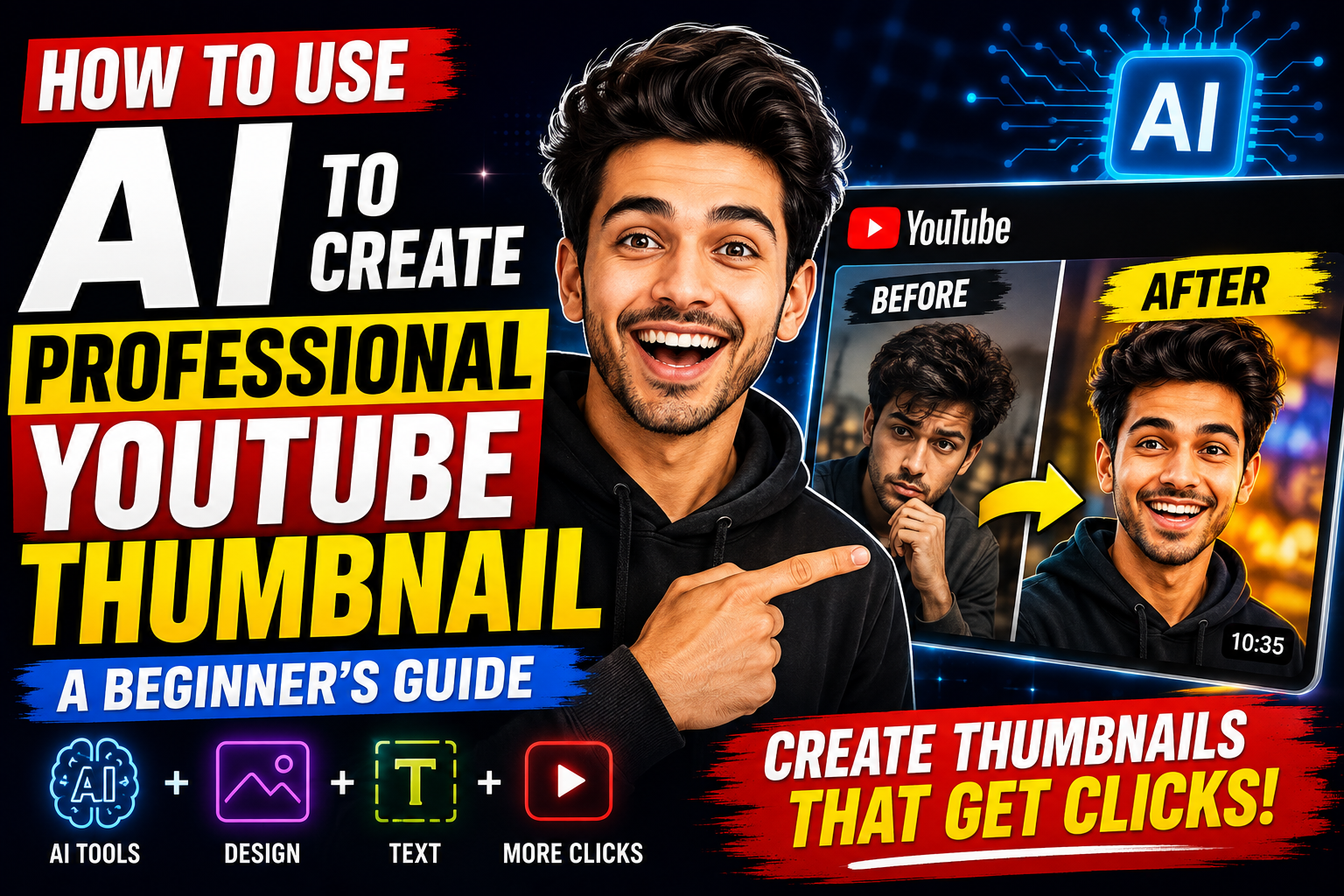
Step 8: Create a Before-and-After Design
Before-and-after thumbnails can be particularly useful for tutorials where the video demonstrates a transformation.
Examples include:
- Photo editing
- Video editing
- Website design
- Logo creation
- AI image generation
- Room makeovers
- Graphic design
A simple layout could show the original result on one side and the improved result on the other.
Use clear labels such as:
BEFORE
and
AFTER
This helps viewers understand the transformation immediately.
Step 9: Make the Main Subject Large
Small subjects can disappear when a thumbnail is viewed on a phone.
If your thumbnail contains a person, product or object, make sure the main subject occupies enough space.
For a portrait-based thumbnail, showing the face clearly can often be more effective than placing the person far away in the background.
If the video is about a product, make the product large enough to recognize instantly.
Step 10: Add Branding Carefully
If you regularly publish videos, consistent branding can make your channel easier to recognize.
You can maintain consistency through:
- Similar typography
- A recurring layout
- A logo
- Consistent visual elements
- A recognizable design style
But don’t allow branding to take up most of the thumbnail.
The video’s main message should remain the priority.
Example AI Prompt for a YouTube Thumbnail
Here is a more complete prompt you can customize:
Create a professional YouTube thumbnail for a video about [VIDEO TOPIC]. Use [MAIN SUBJECT] as the primary visual element. Create a clean, high-contrast composition that is easy to understand on a smartphone screen. Place the main subject prominently in the frame and leave clear negative space for a short headline. Use realistic lighting, sharp details, strong subject separation and a modern professional visual style. Avoid clutter, excessive small objects, confusing compositions and unnecessary text. The design should look polished and suitable for a professional YouTube channel.
You can replace the placeholders with your actual video topic and subject.
How to Improve an AI-Generated Thumbnail
The first AI-generated result doesn’t have to be the final version.
After generating an image, inspect it carefully.
Look for:
- Strange hands
- Distorted faces
- Incorrect objects
- Unwanted text
- Poor composition
- Inconsistent lighting
- Unnecessary details
- Low-quality areas
If one part looks wrong, use an AI editing tool to correct that specific area instead of regenerating everything.
This can save time and help preserve the parts of the image that already look good.
Common YouTube Thumbnail Mistakes
Too Much Text
A thumbnail filled with sentences is difficult to read.
Use a short phrase that supports the video title rather than repeating the entire title.
Too Many Objects
Adding phones, laptops, arrows, charts, logos, icons and several people can make the design difficult to understand.
Choose only the elements that actually support the video’s topic.
Misleading Images
Don’t use an image that promises something your video doesn’t deliver.
A strong thumbnail should attract attention while accurately representing the content.
Tiny Main Subject
If the main subject is too small, viewers may not understand the thumbnail quickly.
Make the primary visual obvious.
Poor Mobile Readability
Always check how the thumbnail looks when displayed at a small size.
A design that looks great on a large monitor may become difficult to understand on a phone.
Using AI Text Without Checking It
AI-generated text can contain spelling mistakes or strange characters.
If the tool generates text inside the image, inspect it carefully. Adding text separately is often safer.
AI Thumbnail Creation Workflow
A simple workflow for beginners can look like this:
1. Choose the video topic
Understand the main promise of the video.
2. Create a thumbnail concept
Decide what viewers should notice first.
3. Generate the main visual
Use an AI image tool to create the required subject or background.
4. Edit the image
Fix unwanted elements and improve the composition.
5. Add the headline
Use a design editor to add short, readable text.
6. Check the mobile version
Reduce the thumbnail to a small size and see whether the main message is still clear.
7. Compare different versions
Create a few variations and choose the one that communicates the video idea most clearly.
Can AI Guarantee More YouTube Clicks?
No.
AI can help you create attractive thumbnails, but it cannot guarantee a specific click-through rate or number of views.
A thumbnail is only one part of YouTube performance. The video topic, title, audience interest, content quality, competition and viewer satisfaction also matter.
A visually impressive thumbnail won’t solve the problem if the video doesn’t deliver what the viewer expected.
The best approach is to use AI as a design assistant while focusing on honest packaging and useful content.
Frequently Asked Questions
Can beginners create YouTube thumbnails with AI?
Yes. Beginners can use AI to generate visual concepts, backgrounds and subjects, then combine those elements in a simple design editor.
What should I write in an AI thumbnail prompt?
Mention the video topic, main subject, composition, visual style, lighting and where you want space for text. Specific instructions usually provide a better starting point than a very short prompt.
Should AI generate the thumbnail text?
It can, but you should always check the result. For accurate spelling and better typography control, adding text separately is often a better option.
How much text should a YouTube thumbnail have?
There is no fixed number of words that works for every thumbnail, but keeping the message short generally makes it easier to read on smaller screens.
Can AI create thumbnails without Photoshop?
Yes. You can use AI image-generation and editing tools together with simpler design applications. You don’t necessarily need advanced software to create a useful thumbnail.
Final Thoughts
Learning how to use AI to create a YouTube thumbnail can make the design process much faster, especially if you’re not an experienced graphic designer.
The key is not to let AI do everything without supervision. Start with a clear concept, generate the main visual, correct mistakes, add readable text and check how the finished design looks on a small screen.
A good thumbnail doesn’t need dozens of effects. It needs a clear idea, a strong visual and a message that matches the video.
Use AI to speed up the creative process, but keep the final design simple, honest and focused on the viewer.