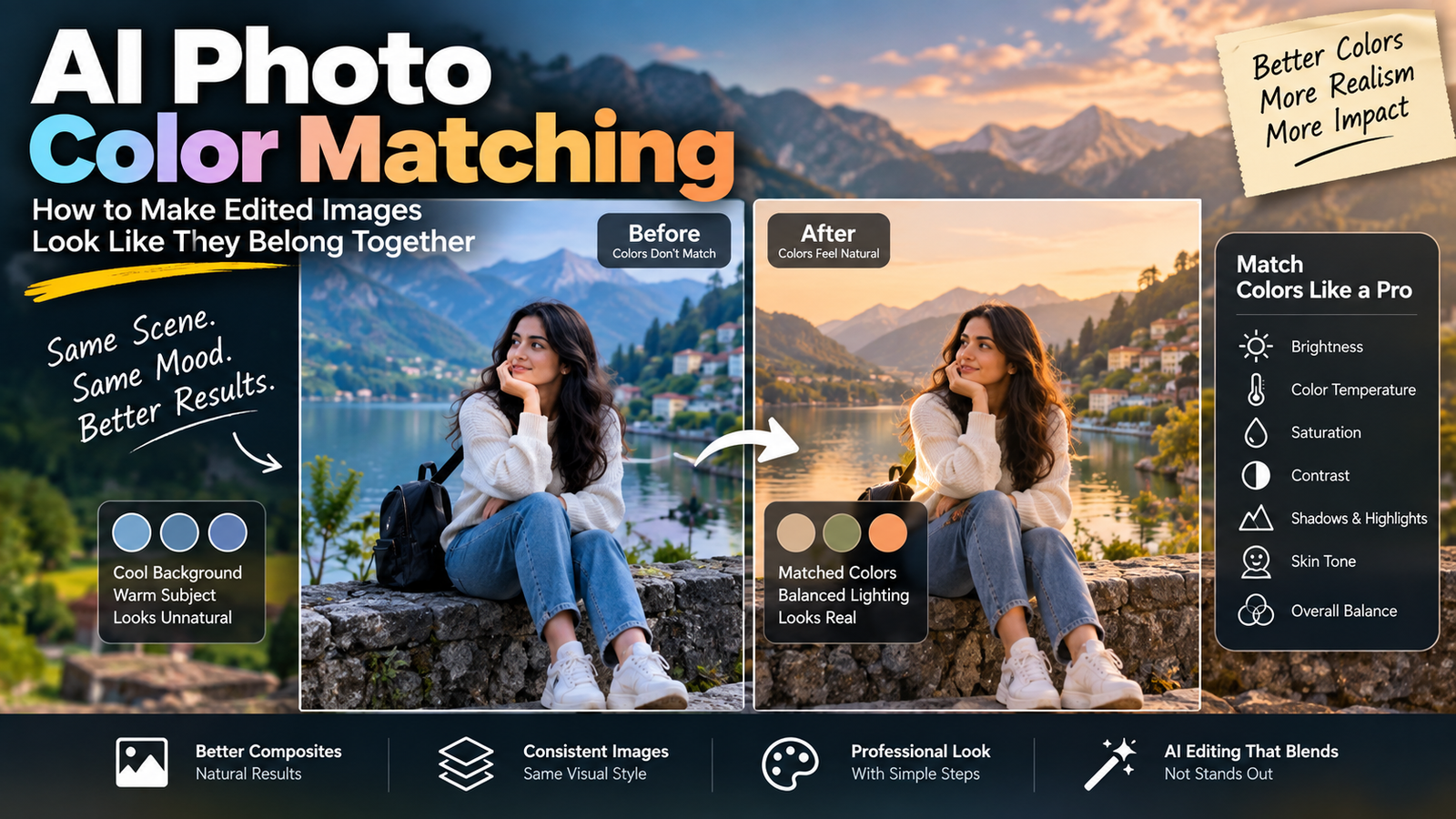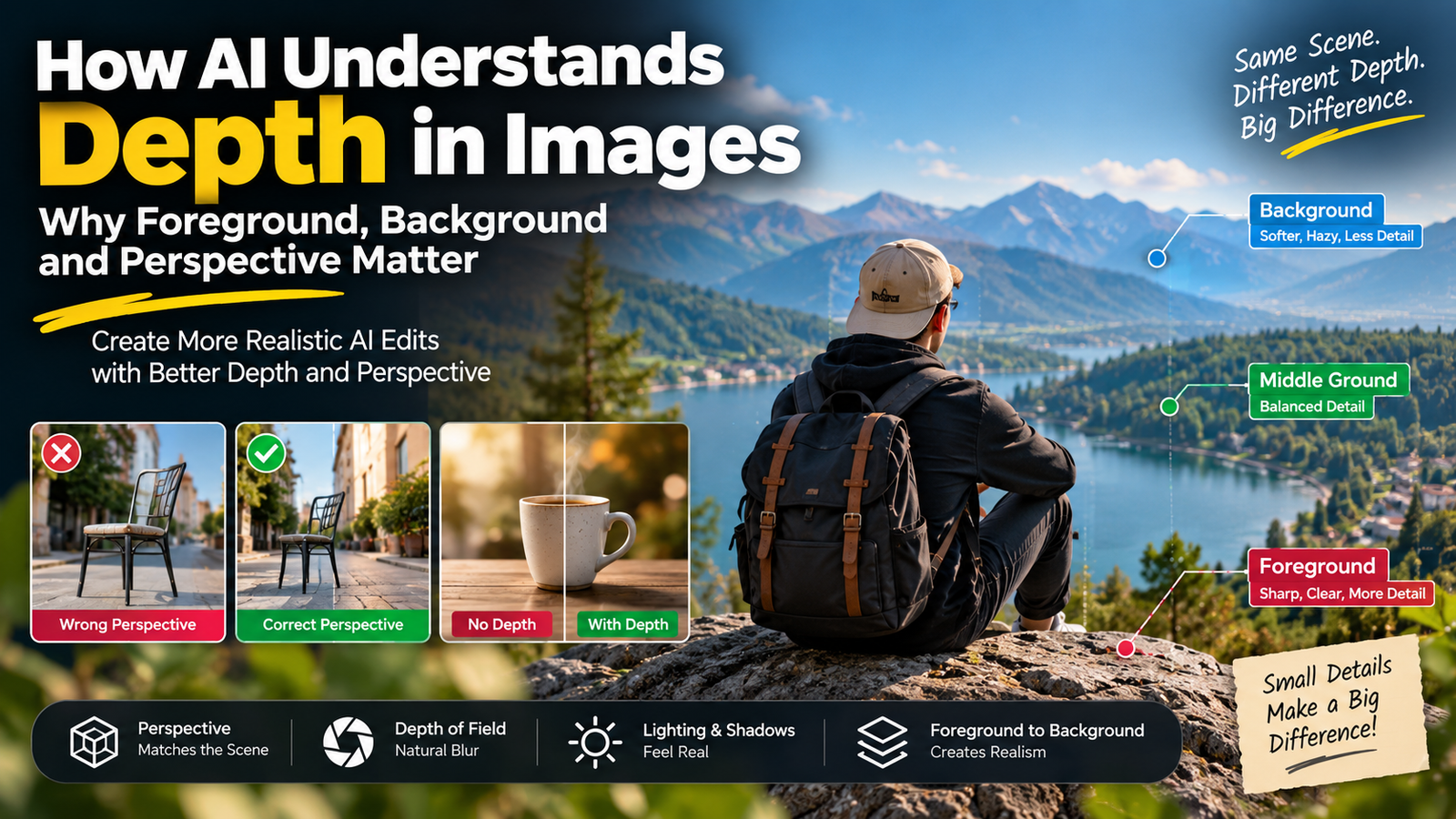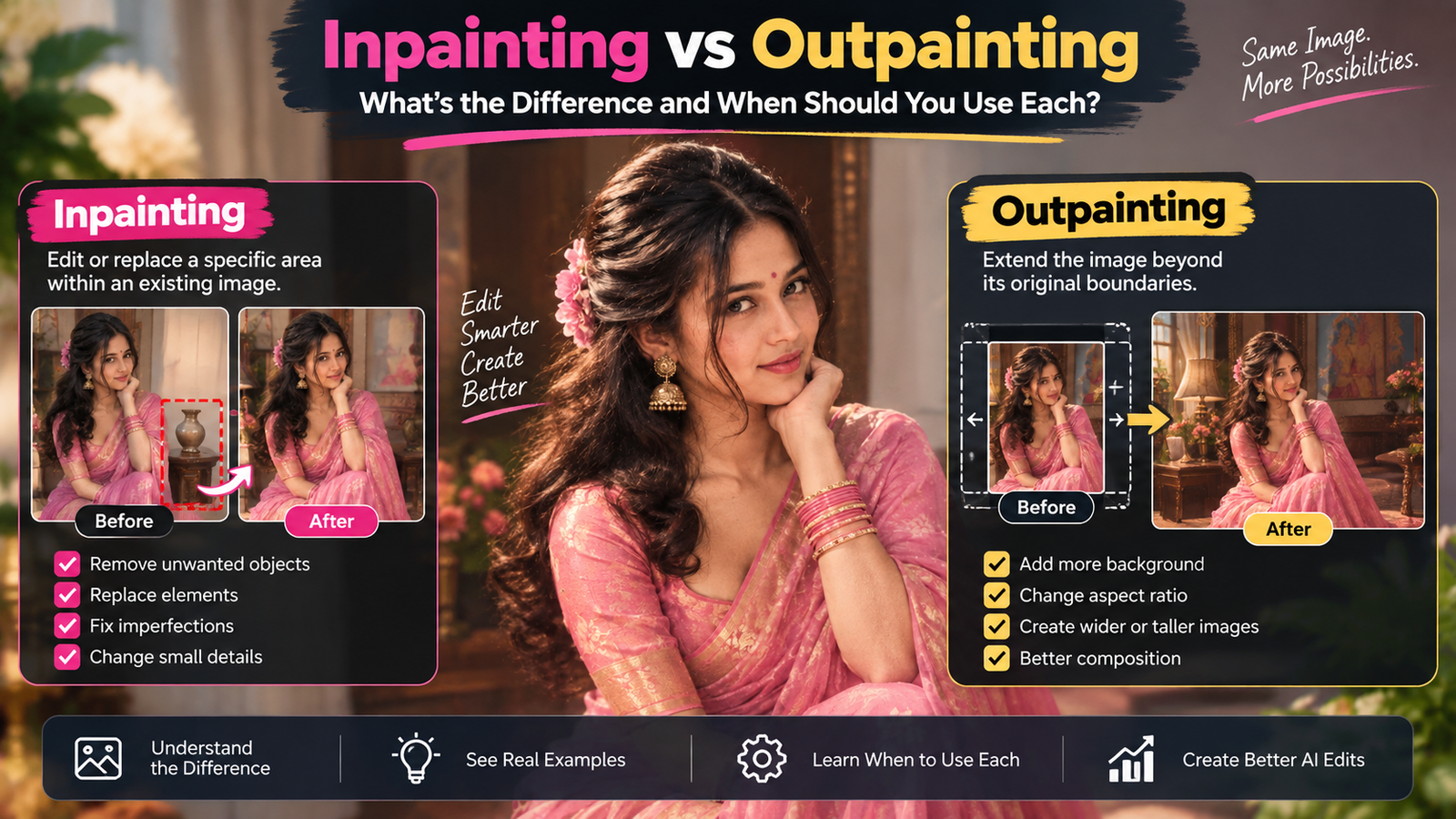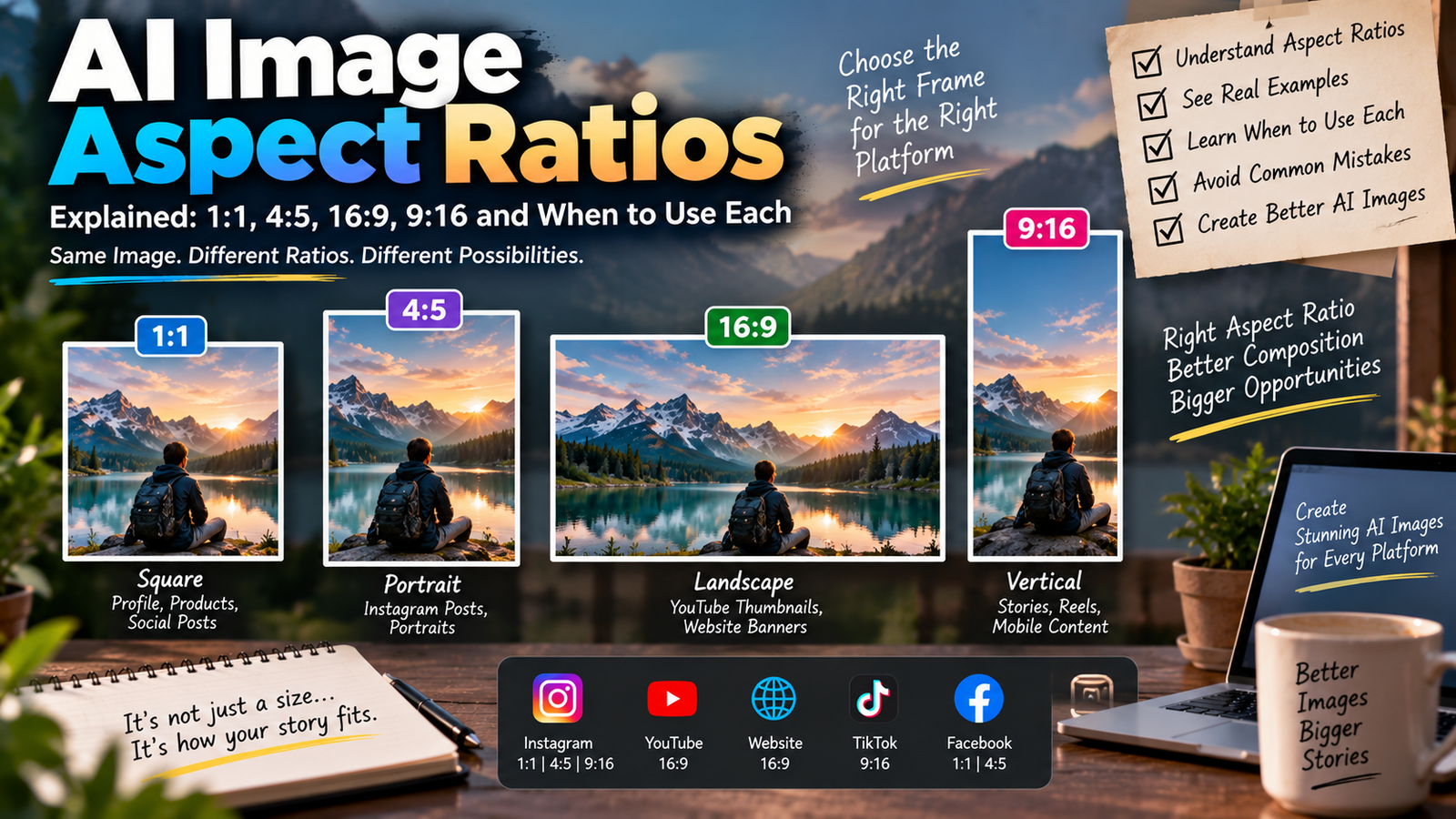
AI photo editing has become much easier with Google Gemini. Instead of manually adjusting brightness, background, clothes, colors, or lighting in a traditional photo editor, you can upload a photo to Gemini and describe the changes you want in natural language.
The quality of the final result depends heavily on how clearly you write your prompt. A simple instruction such as “make my photo better” may produce an unpredictable result, while a detailed prompt can tell Gemini exactly what should change and what should remain untouched.
In this guide, you will learn how to edit photos in Gemini AI using prompts, how to upload a photo, how to write better editing instructions, and several copy-and-paste prompt examples.
What Is a Gemini AI Photo Editing Prompt?
A Gemini AI photo editing prompt is a text instruction that tells Gemini how you want an existing image to be modified.
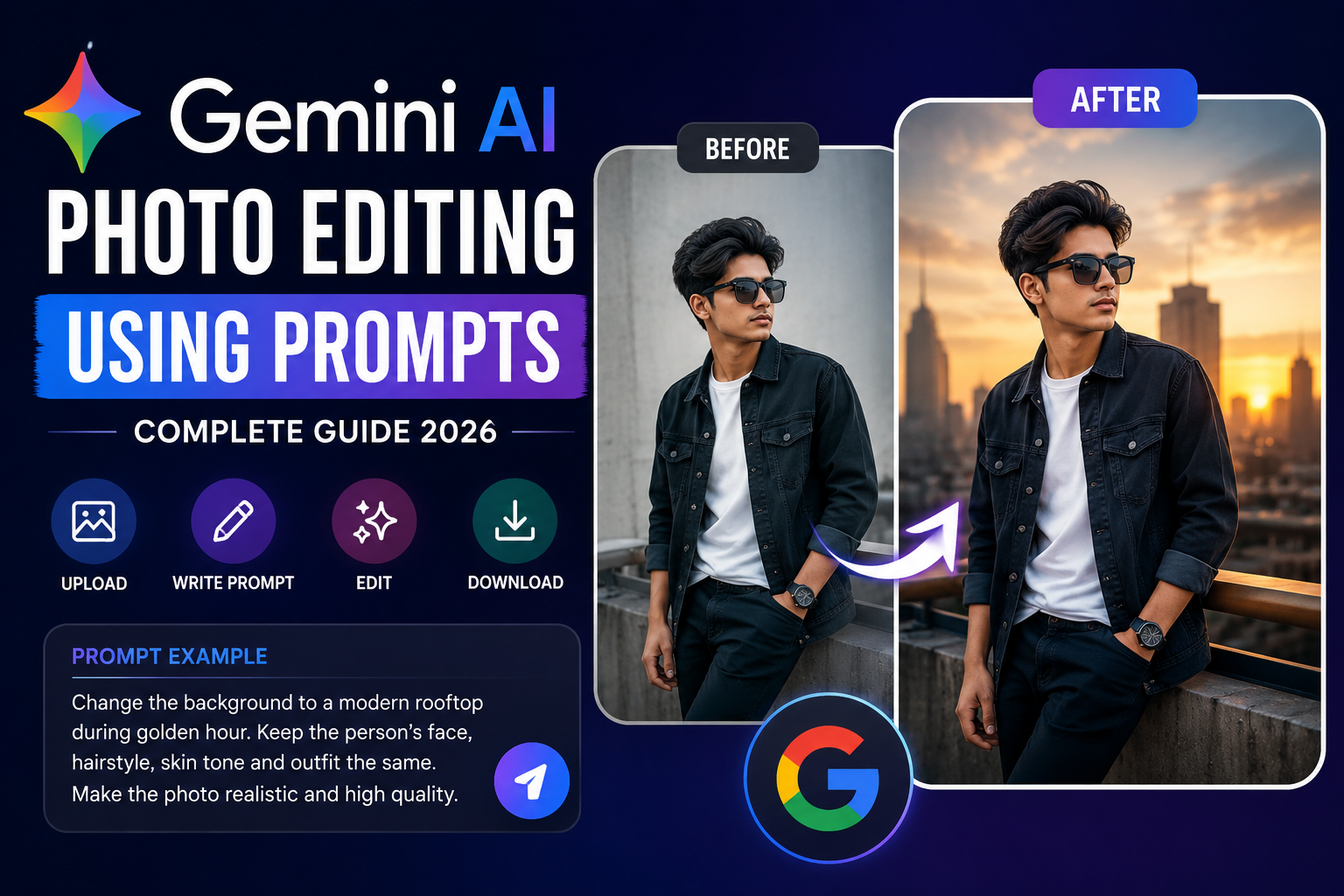
For example, instead of manually replacing a background, you can upload your photo and write:
“Replace the background with a modern rooftop during golden hour. Keep the person’s face, hairstyle, skin tone, clothing and body proportions unchanged. Match the lighting on the subject with the new environment and keep the result photorealistic.”
Gemini can then interpret the instruction and create an edited version of the image.
Google’s current Gemini documentation says users can upload an image and ask Gemini to make edits, edit images generated inside Gemini, or use multiple uploaded images as references.
How to Edit a Photo in Gemini AI
The basic process is simple.
Step 1: Open Google Gemini
Open the Gemini website or Gemini mobile app and sign in with your Google account.
Step 2: Upload Your Photo
Upload the photo you want to edit. For better results, use a clear image with good lighting and a reasonably visible subject.
Gemini also supports multiple images in supported workflows, which can be useful when you want to provide additional references.
Step 3: Write Your Editing Prompt
Tell Gemini exactly what you want to change.
Instead of writing:
Make this photo attractive.
Try something more specific:
“Turn this casual portrait into a professional outdoor fashion photograph. Keep my facial identity, hairstyle, skin tone and body proportions unchanged. Replace the background with a modern city street during sunset. Add realistic warm sunlight from the side, natural shadows and subtle depth of field. Keep the result photorealistic.”
Step 4: Generate the Edited Image
Submit your prompt and wait for Gemini to process the image.
If the first result isn’t exactly what you wanted, don’t completely rewrite everything. Give Gemini a follow-up instruction describing the specific part that needs correction.
For example:
“Keep the previous result but make the background slightly darker and reduce the intensity of the sunlight. Do not change the person’s face.”
This step-by-step approach can be more useful than trying to describe every possible modification in one huge prompt.
Best Formula for Writing Gemini Photo Editing Prompts
A useful structure is:
Subject + Change + Environment + Lighting + Style + Preservation Instructions
For example:
Subject: Person in the uploaded photo
Change: Replace clothing
Environment: Luxury hotel lobby
Lighting: Soft warm indoor lighting
Style: Realistic professional photography
Preservation: Keep face and body proportions unchanged
Combined prompt:
“Edit the uploaded photo into a realistic luxury fashion portrait. Change the outfit to a sophisticated black formal suit and place the subject inside a modern luxury hotel lobby. Use soft warm indoor lighting with realistic shadows and reflections. Keep the person’s facial features, identity, hairstyle, skin tone and body proportions unchanged. Make the final image look like a professionally photographed portrait.”
10 Gemini AI Photo Editing Prompts You Can Copy
1. Professional Portrait Prompt
“Transform this uploaded photo into a professional studio portrait. Keep my exact facial features, identity, hairstyle, skin tone and natural appearance unchanged. Use soft studio lighting, a clean neutral background, realistic skin texture and subtle depth of field. Make the result look like it was captured with a professional portrait camera.”
2. Golden Hour Photo Prompt
“Edit this photo into a realistic golden-hour portrait. Place the subject outdoors shortly before sunset with warm sunlight coming from the side. Add natural highlights, soft shadows and realistic background blur. Preserve the person’s face, hairstyle, skin tone, clothing and body proportions. Do not make the skin excessively smooth or artificial.”
3. Cinematic Night Portrait
“Turn this uploaded portrait into a cinematic nighttime photograph. Place the subject on a modern city street with subtle neon lights in the background. Add realistic blue and warm ambient lighting, natural shadows and shallow depth of field. Keep the person’s facial identity, hairstyle, skin tone and proportions unchanged.”
4. Background Replacement
“Replace only the background of this photo with a beautiful modern rooftop overlooking a city skyline. Keep the person exactly as they appear in the original image. Match the lighting, shadows and color temperature between the subject and the new background. Make the result photorealistic and natural.”
5. Outfit Change
“Change the person’s outfit to a premium casual streetwear outfit consisting of a clean oversized jacket, plain T-shirt and modern trousers. Keep the face, hairstyle, skin tone, pose, body proportions and identity unchanged. Make the clothing realistic with natural fabric texture and accurate shadows.”
6. Instagram Profile Photo
“Turn this photo into a premium Instagram profile portrait. Keep my recognizable face and natural features unchanged. Use a clean modern background, soft directional lighting, realistic skin texture and subtle professional color grading. Crop the composition naturally for a square social media profile image.”
7. Travel Photo Edit
“Transform the background of this photo into a realistic European city street during sunset. Keep the person completely recognizable and preserve the original face, hairstyle, skin tone and body proportions. Match the sunlight and shadows naturally so the subject looks genuinely photographed in the new location.”
8. Luxury Fashion Look
“Transform this portrait into a high-end fashion editorial photograph. Keep the person’s identity and facial structure unchanged. Add sophisticated clothing, elegant architectural surroundings, controlled studio-style lighting and realistic shadows. Use premium fashion photography composition without making the image look artificial.”
9. Old Photo Restoration
“Restore this old photograph while preserving the original person’s identity and facial characteristics. Remove scratches, dust, stains and visible damage. Improve clarity and contrast while keeping natural skin texture and realistic facial details. Do not modernize or redesign the person’s appearance.”
10. Remove Unwanted Objects
“Remove the unwanted objects and distractions from the background of this photo. Reconstruct the missing areas naturally so the edit is not visible. Preserve the main subject, facial features, clothing, pose and original lighting. Keep the final image photorealistic.”
How to Keep Your Face More Consistent
One of the biggest concerns with AI photo editing is that the face can sometimes change during a transformation.
To reduce unwanted changes, clearly tell Gemini which features should remain unchanged.
Useful instructions include:
- Keep the original facial identity.
- Preserve facial structure.
- Keep the natural skin tone.
- Do not change the hairstyle.
- Preserve eye shape and facial proportions.
- Keep the original body proportions.
- Do not make the skin excessively smooth.
- Keep the person’s age and natural appearance consistent.
Google says the current Nano Banana 2 model has improved character consistency and can make local edits to specific parts of an image.
However, preservation instructions are not a guarantee that every generated result will be identical to the original. AI-generated edits should always be reviewed before publishing.
Why Simple Prompts Sometimes Give Poor Results
A vague prompt gives Gemini too much freedom.
For example:
“Make me handsome.”
This doesn’t explain what should actually change.
A better prompt describes:
- The desired environment
- Clothing
- Lighting
- Camera style
- Mood
- Background
- Realism level
- Features that should remain unchanged
Instead of asking for ten unrelated changes at once, you can also edit the image gradually.
For example:
First prompt: Change the background.
Second prompt: Improve the lighting.
Third prompt: Adjust the clothing.
Fourth prompt: Add a cinematic color grade.
This gives you more control over the final result.
How to Make Gemini Photo Editing Prompts More Realistic
If you want realistic results, don’t only use words such as “8K,” “ultra HD” or “hyper realistic.” Describe the actual photographic characteristics you want.
For example, mention:
- Natural skin texture
- Realistic shadows
- Consistent lighting
- Natural reflections
- Realistic fabric texture
- Shallow depth of field
- Accurate perspective
- Subtle color grading
- Natural facial details
Google’s own prompt guidance recommends describing the image style and providing a detailed visual description of the subject, action and environment.
Can Gemini Edit Multiple Photos?
Yes. Gemini’s current image editing workflow supports uploading multiple images and asking Gemini to create a new image based on those references. This can be useful for combining visual references, transferring certain elements, or creating a composition from multiple photos.
For example:
“Use the first image as the person reference and the second image as the clothing reference. Create a realistic portrait using the person’s identity from the first image and the outfit design from the second image. Keep the result natural and maintain consistent lighting.”
Always make sure you have the necessary rights or permission to use images of other people.
Gemini Photo Editing Prompt for Social Media
If you’re creating images for Instagram, Reels, Facebook or other social platforms, specify the desired composition.
Example:
“Edit this portrait into a modern social-media-ready photograph. Keep my facial identity and natural appearance unchanged. Create a clean cinematic background with soft evening lighting, realistic shadows and subtle depth of field. Keep the subject sharply focused and leave enough clean space around the subject for a vertical 4:5 composition.”
Gemini Photo Editing Prompt for Boys
“Transform this uploaded portrait into a stylish modern men’s fashion photograph. Keep the exact facial identity, hairstyle, skin tone and body proportions unchanged. Give the subject a premium casual outfit and place him in a sophisticated urban environment during sunset. Use realistic cinematic lighting, natural skin texture and subtle background blur. Avoid excessive retouching or artificial facial changes.”
Gemini Photo Editing Prompt for Girls
“Transform the uploaded portrait into an elegant outdoor fashion photograph. Preserve the woman’s exact facial identity, natural skin tone, hairstyle and body proportions. Place her in a beautiful modern outdoor setting during golden hour. Use soft natural lighting, realistic shadows, subtle background blur and professional photography composition. Keep the result natural rather than overly retouched.”
Gemini Couple Photo Editing Prompt
“Create a realistic romantic couple portrait using the uploaded image as the main reference. Preserve both people’s facial identities, natural skin tones, hairstyles and body proportions. Place them in a beautiful outdoor location during golden hour with warm sunlight, natural shadows and a soft cinematic background. Make the final photograph look authentic and professionally captured.”
Important Tips Before Using Gemini Photo Editing
Use a clear source image
A sharp, well-lit photo generally gives the model more useful visual information than a heavily compressed or blurry image.
Describe exactly what should change
If you only want the background changed, explicitly say:
“Change only the background.”
This can help prevent unnecessary modifications.
Tell Gemini what to preserve
Include identity, hairstyle, skin tone, clothing, pose or other important elements when they matter.
Avoid contradictory instructions
Don’t ask for a dark nighttime environment while simultaneously requesting bright midday sunlight. Give Gemini a consistent visual direction.
Review the final image
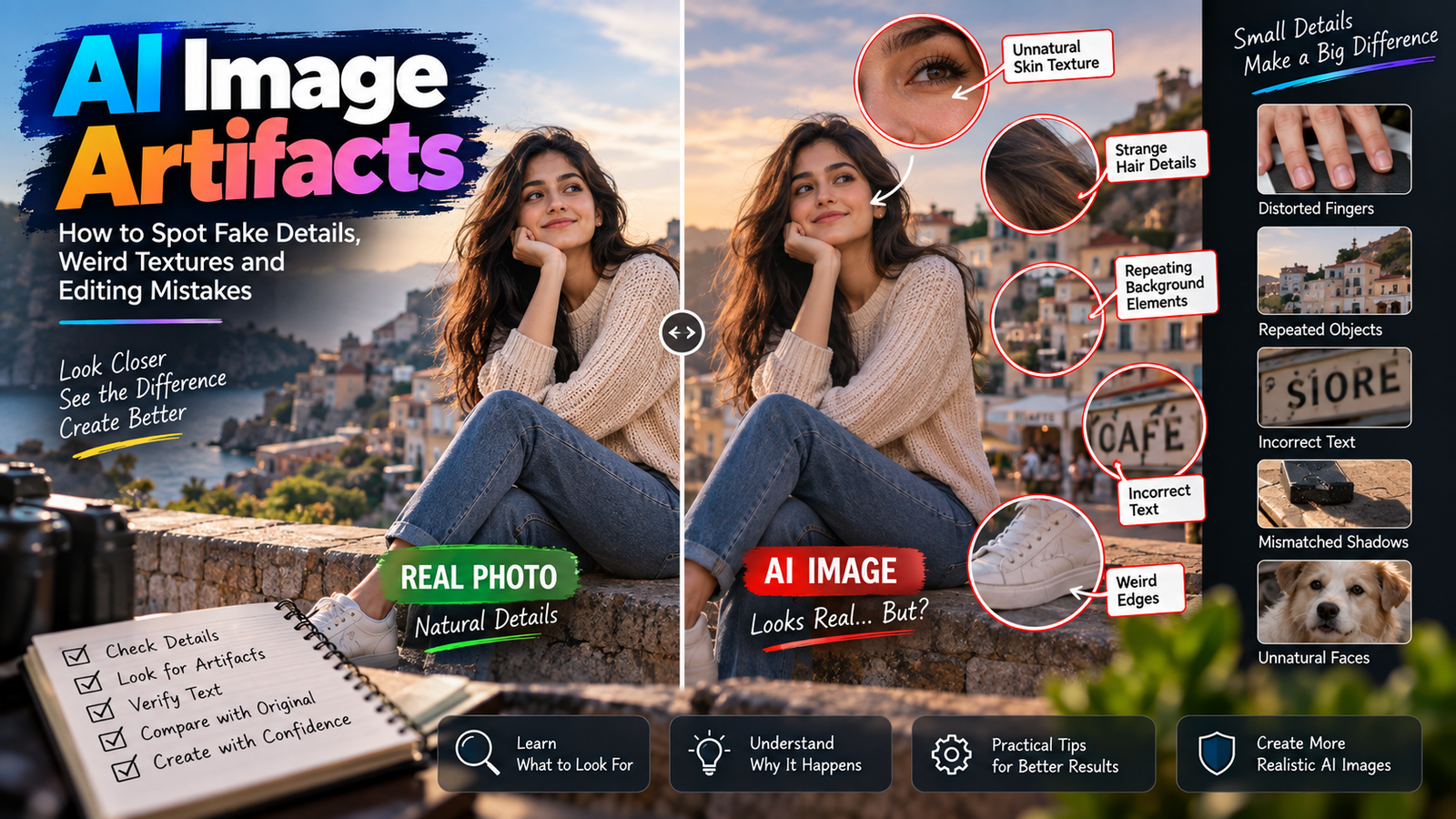
AI editing can introduce unwanted details, especially in complex areas such as hands, text, jewelry, facial details and reflections. Always inspect the generated image before publishing it.
Is Gemini AI Photo Editing Free?
Access and available image-generation or editing features can vary depending on the Gemini app, account type, country, age requirements, model and usage limits. Google’s current documentation notes that image editing is restricted to users 18 and over, while different Nano Banana models have different capabilities and availability.
Therefore, users should check their own Gemini interface to see which image-editing options are currently available.
Final Thoughts
Learning how to edit photos in Gemini AI using prompts is mainly about giving the model clear visual instructions. Instead of relying on a short command, describe the desired change, environment, lighting, style and important elements that should remain unchanged.
Start with a simple edit, review the result, and then refine it with follow-up instructions. This approach can help you create more controlled and natural-looking AI photo edits for portraits, social media images, travel photos, fashion concepts and creative projects.
Google continues to improve Gemini’s native image generation and editing capabilities, including better instruction following, character consistency and local image edits.